> ## Documentation Index
> Fetch the complete documentation index at: https://docs.openpage.fun/llms.txt
> Use this file to discover all available pages before exploring further.

# Vaults

> Adding a community vault enables you issue Badge token rewards and receive non-custodial token transactions.

### Adding a Vault

To add a new vault, follow these steps:
<Steps>
  <Step title="Navigate to the Vaults page" />

  <Step title="Click Add from the top-right corner" />

  <Step title="Connect your wallet ( EOA or a Multisig e.g. Gnosis Safe )" />

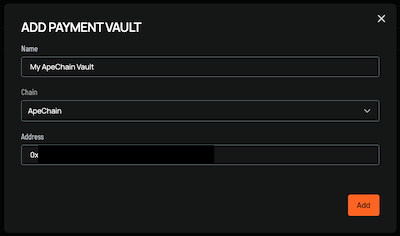
  <Step title="Enter a name for the vault in the 'Name' field" />

  <Step title="Select the blockchain from the 'Chain' drop-down and make sure to select the corresponding chain in your wallet" />

  <Step title="Click 'Add' to add the vault">
    <img className="hidden dark:block" src="https://mintcdn.com/openpage/JKChDVCBg9B7rQ-H/images/add-vault.png?fit=max&auto=format&n=JKChDVCBg9B7rQ-H&q=85&s=6676b719a08fcce82374ab5de328b0aa" alt="Add Vault" width="400" height="236" data-path="images/add-vault.png" />
  </Step>

  <Step title="Sign the signature request in your wallet" />
</Steps>

<Info>An EOA *(Externally Owned Account)* is a standard wallet address controlled by a private key. A multisig address is a wallet that requires multiple approvals for transactions.</Info>

### Multi-sig Gnosis Safe

To connect a Multisig (e.g. Gnosis Safe) you can use Wallet Connect.
<Steps>
  <Step title="Open the Connect Wallet modal" />

  <Step title="Click 'Other Wallet'" />

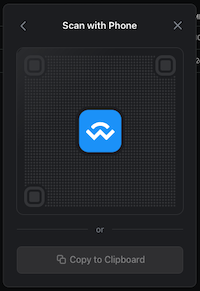
  <Step title="Click 'Copy to Clipboard' to copy the Pairing Code">
    <img className="hidden dark:block" src="https://mintcdn.com/openpage/v11cWBEEZ0rtFcJy/images/wc-connect.png?fit=max&auto=format&n=v11cWBEEZ0rtFcJy&q=85&s=82d2570715166e760af7aab82a946c87" alt="Connect Other Wallet" width="200" height="291" data-path="images/wc-connect.png" />
  </Step>

  <Step title="Navigate to your Gnosis Safe" />

  <Step title="Click the 'Wallet Connect' Icon in the top right of the Safe UI" />

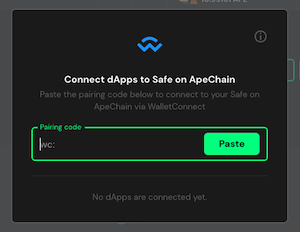
  <Step title="Paste the Pairing Code">
    <img className="hidden dark:block" src="https://mintcdn.com/openpage/XCoh9iBl0R1_TDPR/images/gnosis-safe-connect.png?fit=max&auto=format&n=XCoh9iBl0R1_TDPR&q=85&s=5164c2325e91c4916cf18e7af76628eb" alt="Gnosis Safe Connect" width="300" height="232" data-path="images/gnosis-safe-connect.png" />
  </Step>

  <Step title="Click 'Pair'" />
</Steps>