> ## Documentation Index
> Fetch the complete documentation index at: https://docs.openpage.fun/llms.txt
> Use this file to discover all available pages before exploring further.
# Avatar Profile
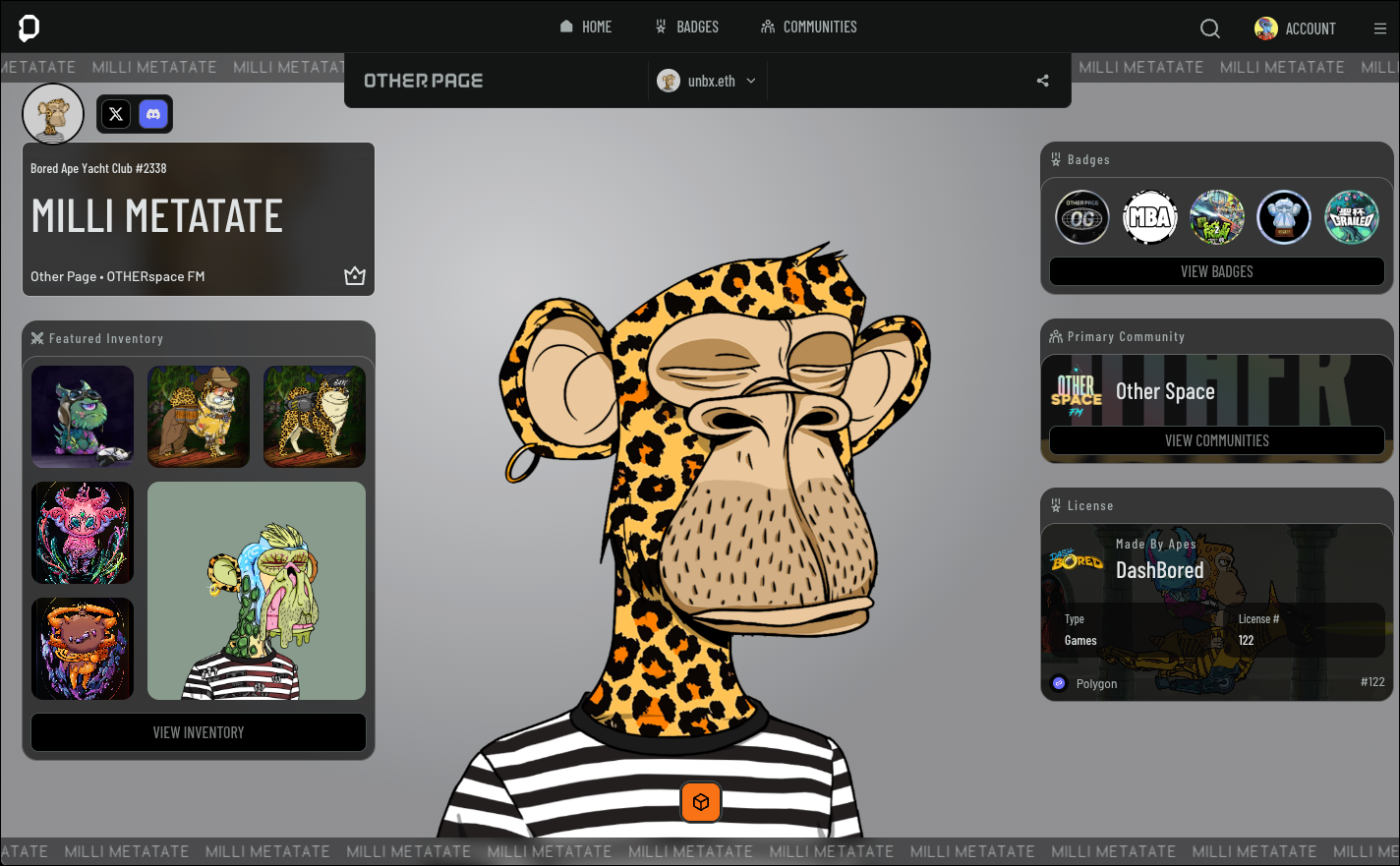
> Discover how to create and manage your Avatar Profile on OpenPage, the universal profile that connects you across the Open Metaverse.
## Creating an Avatar Profile
The Avatar Profile allows you to create a personalized representation of yourself using NFTs from your collection. Your avatar is your identity within the Open Metaverse, allowing you to connect to various experiences. This guide walks you through the process of setting up your Avatar Profile.
Follow these steps to create your Avatar Profile using an NFT from your Avatar Collection:
1. From the **Home** page, scroll down to the **Avatars** section
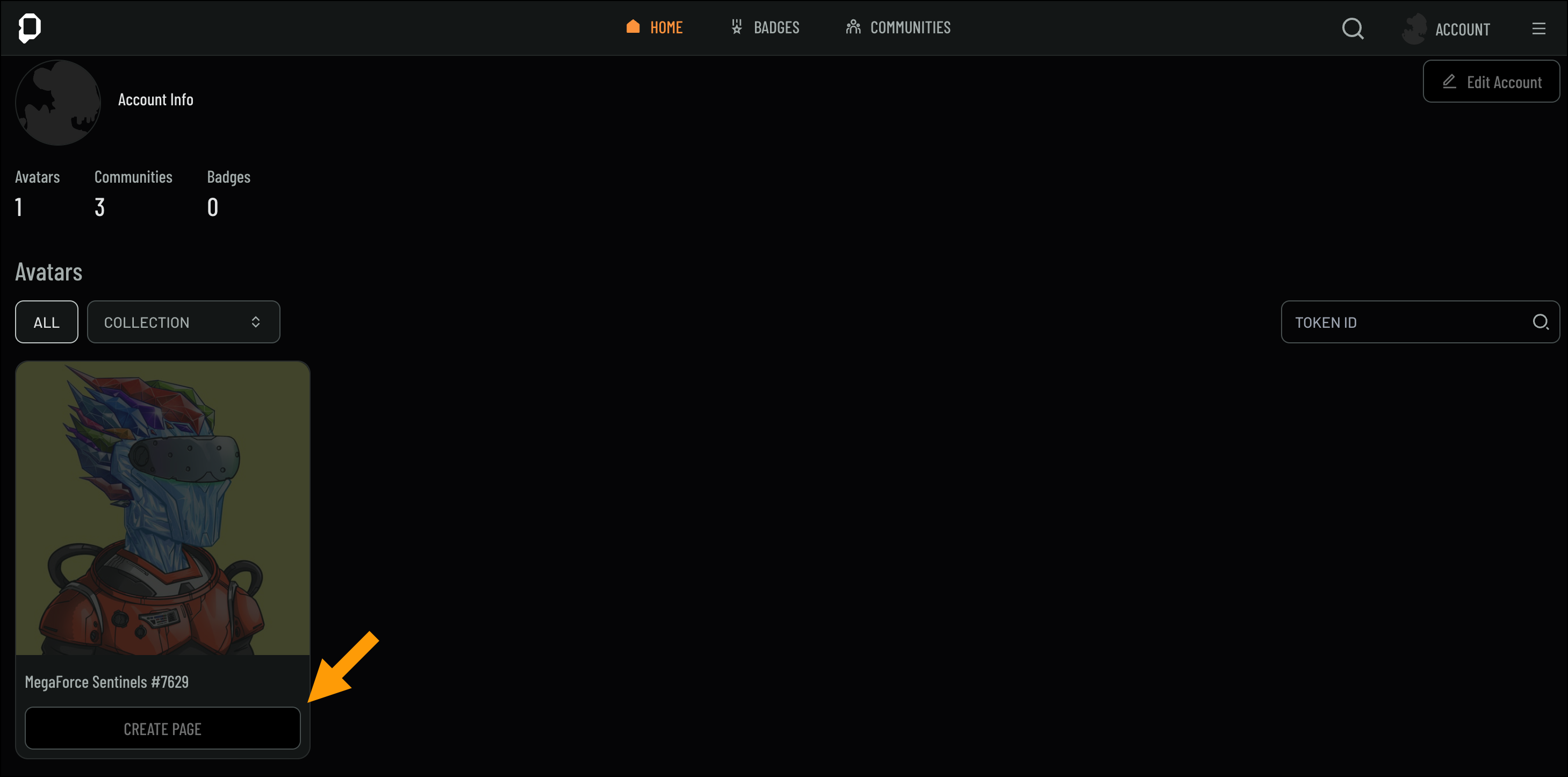
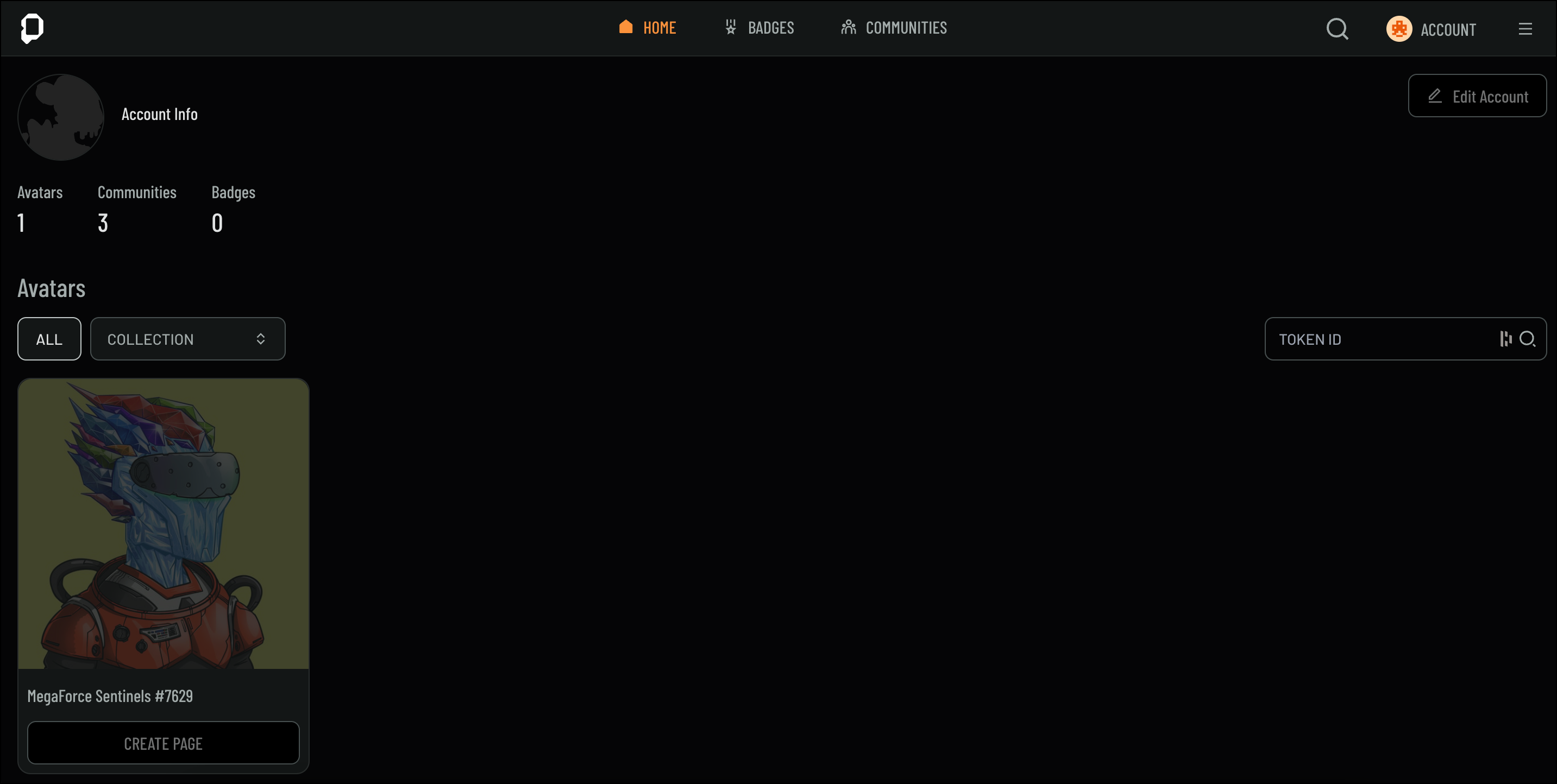 2. Select the NFT you’d like to use for your Avatar Profile and click **Create Page** to begin
 3. Enter a name for your Avatar in the **Name** field
4. Add a description for your Avatar in the **Bio** field
3. Enter a name for your Avatar in the **Name** field
4. Add a description for your Avatar in the **Bio** field
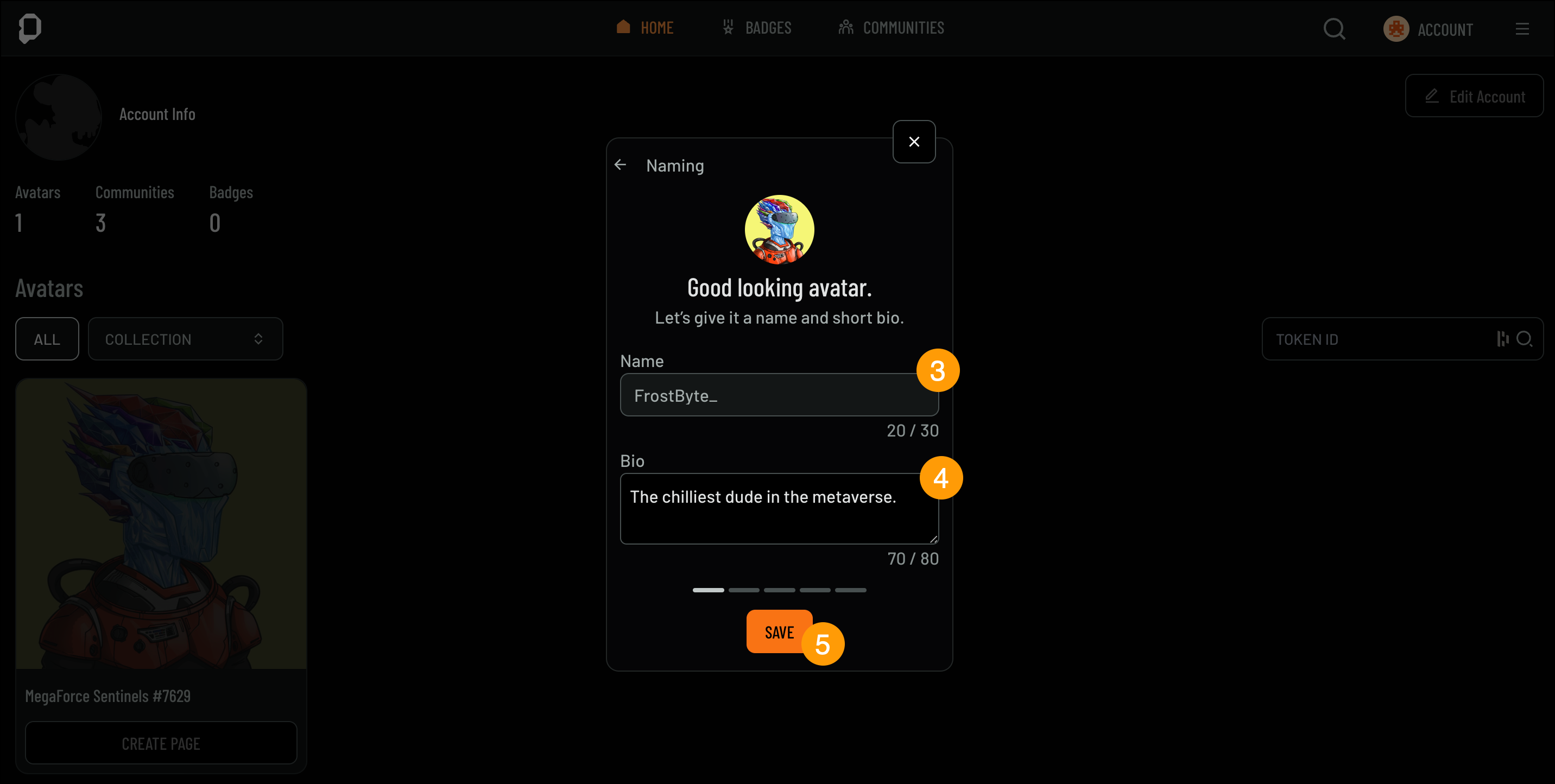 5. Click **Save** to store your Avatar’s information
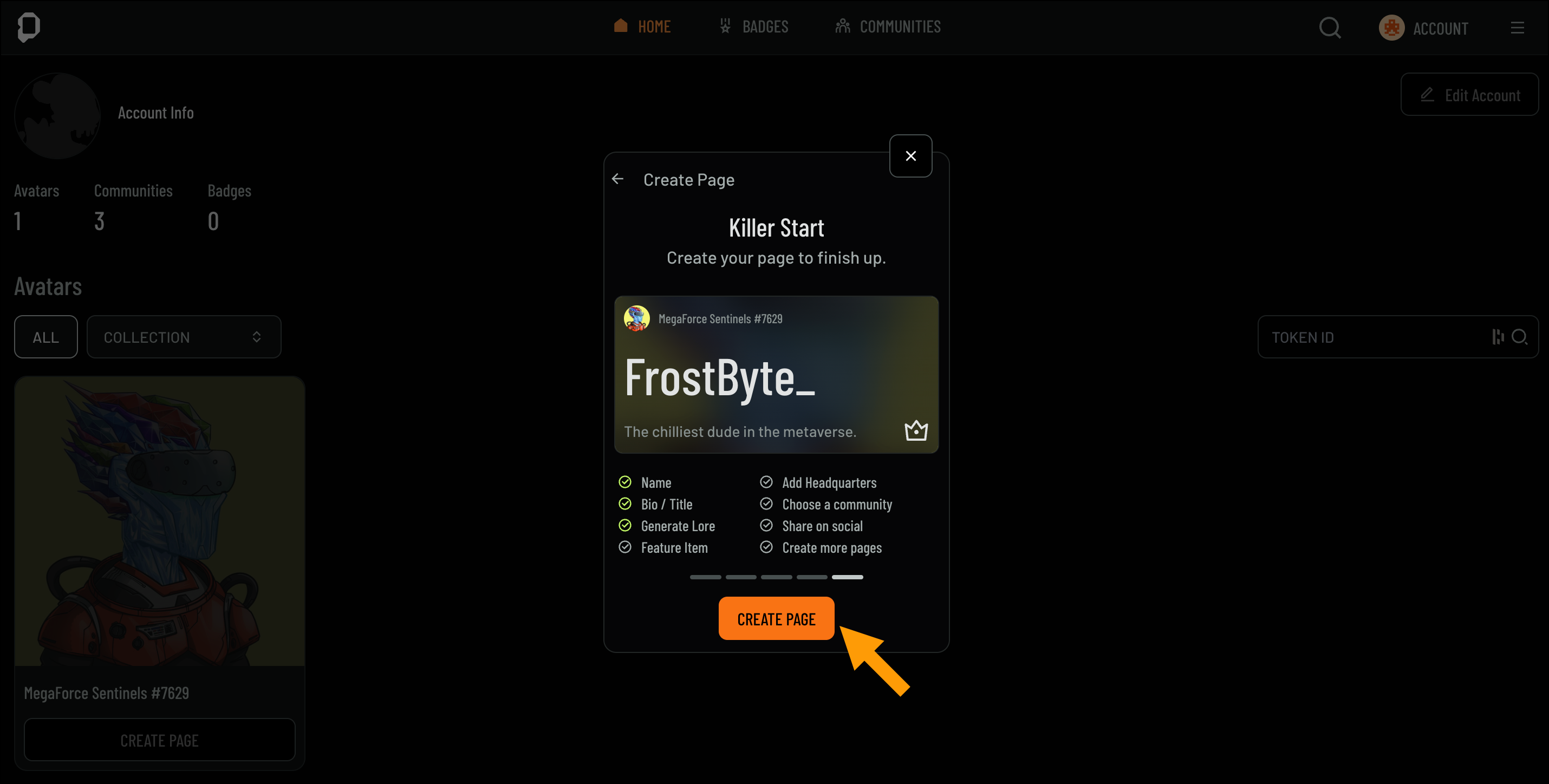
6. Review the details on the **Create Page** screen
7. If everything looks correct, click **Create Page** to finalize your Avatar Profile
5. Click **Save** to store your Avatar’s information
6. Review the details on the **Create Page** screen
7. If everything looks correct, click **Create Page** to finalize your Avatar Profile
 Optional: Enter a referral code if you were referred to OpenPage by someone, if not skip.
Now that you’ve created your Avatar, you’ll be taken directly to the Avatar page you just made. From here, you can begin customizing your Avatar Profile to better represent your unique identity.
## Customizing Your Avatar Profile
Now that you’ve created your Avatar Profile, it’s time to make it truly yours by personalizing different aspects of your profile. You can edit everything from your avatar picture and social media links to showcasing NFTs and badges. This section will guide you through the various options available for customization, helping you create a profile that reflects your identity within the Open Metaverse.
Below is a breakdown of each customizable area:
Optional: Enter a referral code if you were referred to OpenPage by someone, if not skip.
Now that you’ve created your Avatar, you’ll be taken directly to the Avatar page you just made. From here, you can begin customizing your Avatar Profile to better represent your unique identity.
## Customizing Your Avatar Profile
Now that you’ve created your Avatar Profile, it’s time to make it truly yours by personalizing different aspects of your profile. You can edit everything from your avatar picture and social media links to showcasing NFTs and badges. This section will guide you through the various options available for customization, helping you create a profile that reflects your identity within the Open Metaverse.
Below is a breakdown of each customizable area:
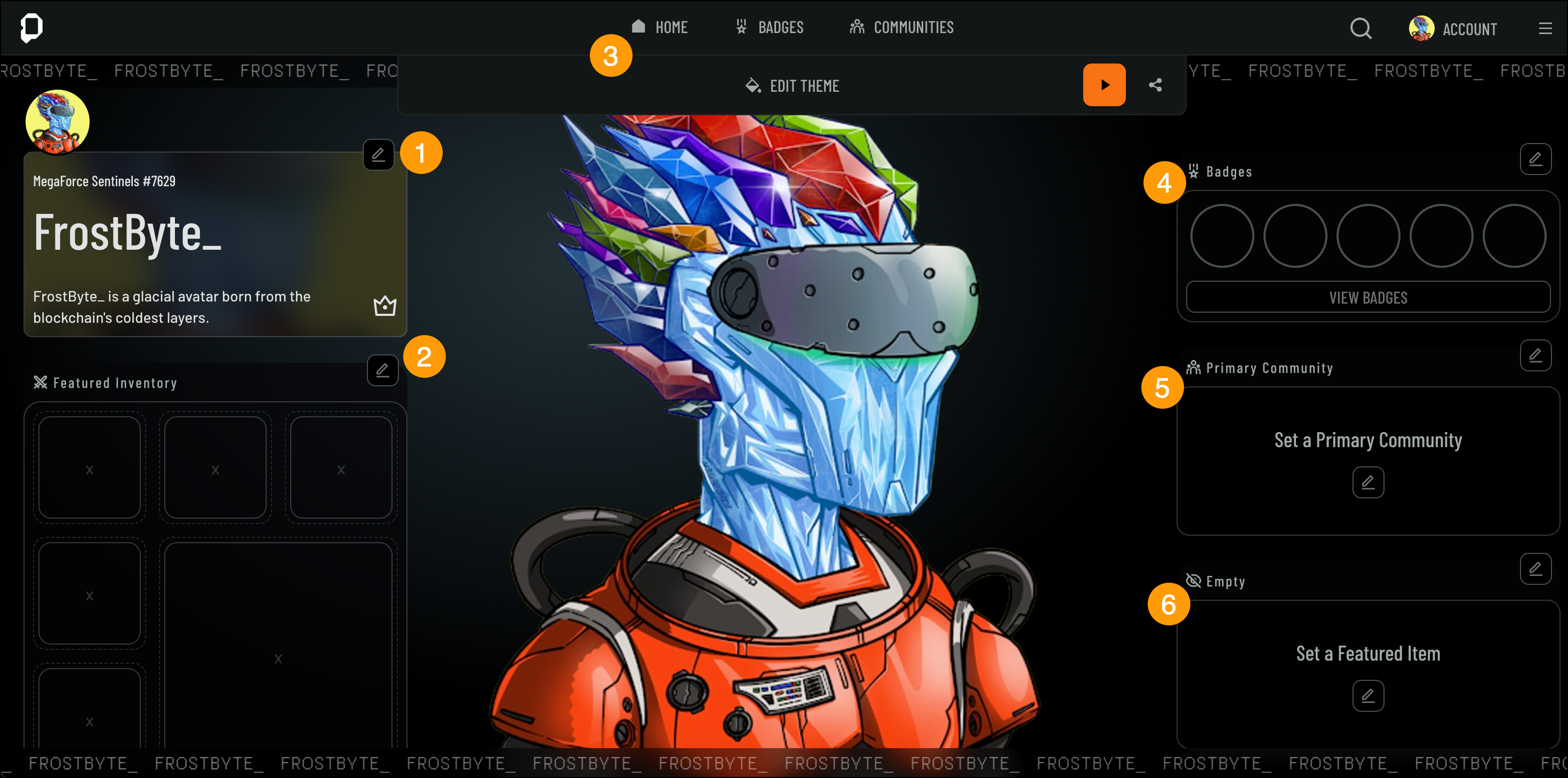 In this section, you can customize your avatar picture, update the name displayed on your profile, and manage your social media links. You also have the option to edit your profile background, giving your avatar a personalized look.
To edit your Avatar Details, follow these steps:
1. Navigate to the **Avatar Details** section
2. Click **Edit**
In this section, you can customize your avatar picture, update the name displayed on your profile, and manage your social media links. You also have the option to edit your profile background, giving your avatar a personalized look.
To edit your Avatar Details, follow these steps:
1. Navigate to the **Avatar Details** section
2. Click **Edit**
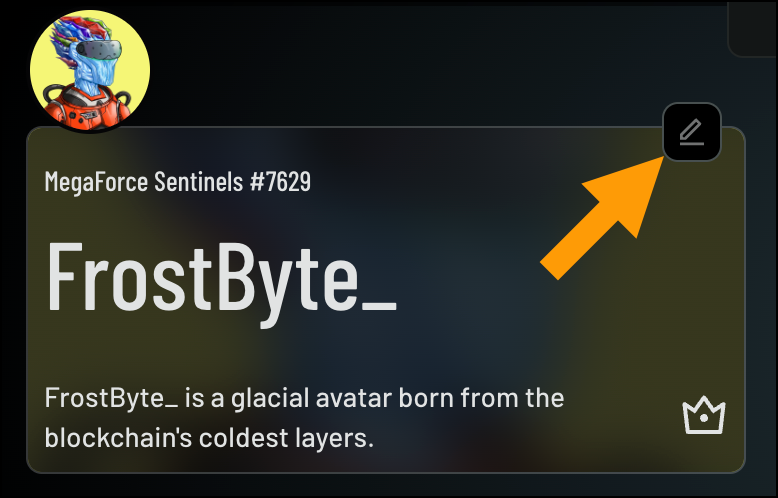 3. The **Edit Avatar Details** screen will appear
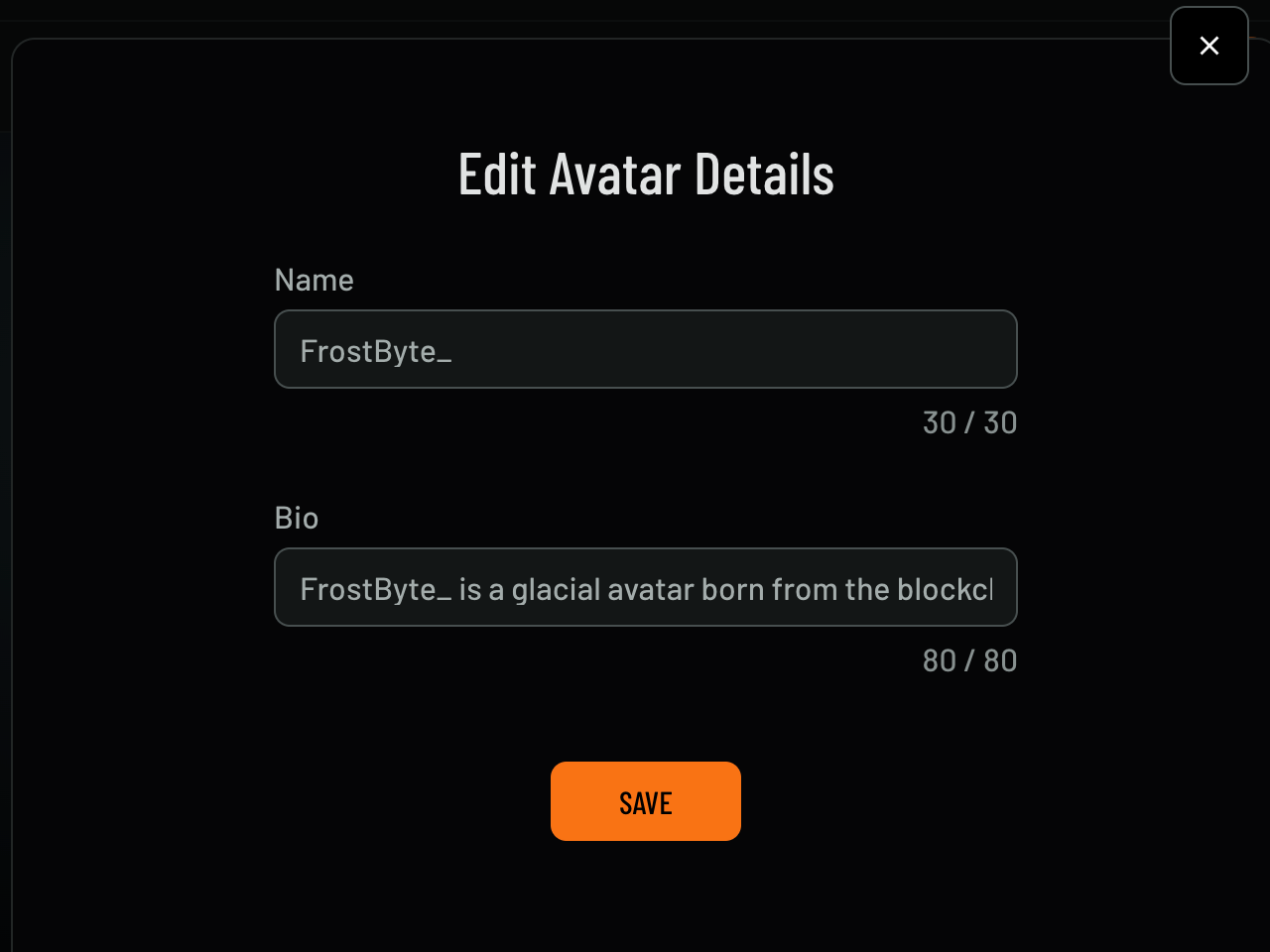 4. Enter a new name in the **Name** field if you'd like to change it
5. Add or update the bio in the **Bio** field if needed
6. Click **Save** to apply your changes
#### Lore
Lore allows you to add a background story to your Avatar. You can either create your own lore or generate one with the help of AI, based on your Avatar’s traits.
Follow these steps to add or generate your Avatar's lore:
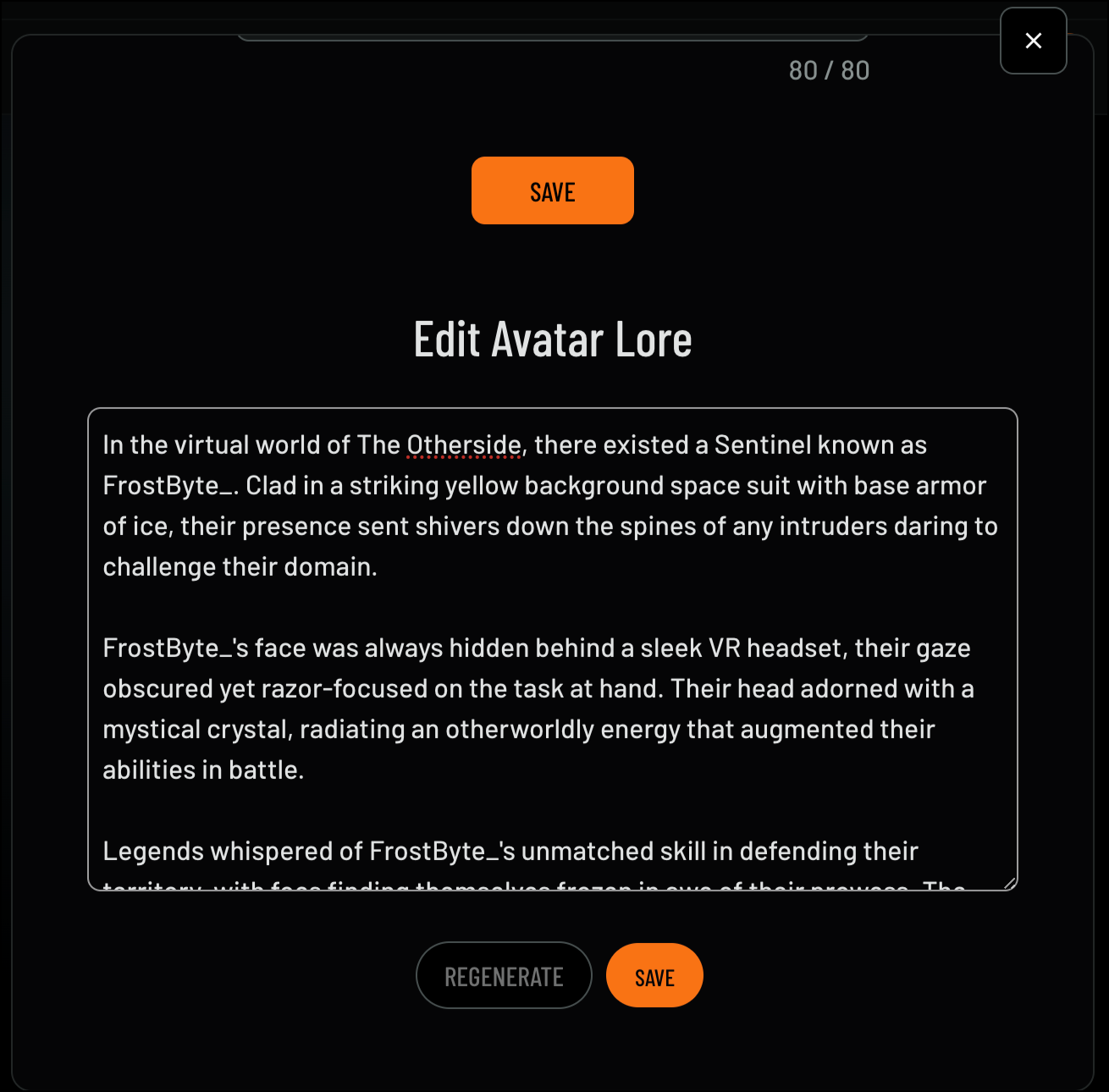
1. If you want to create your own story, click **Edit**
* Begin typing your story
* Click **Save** to apply your changes
4. Enter a new name in the **Name** field if you'd like to change it
5. Add or update the bio in the **Bio** field if needed
6. Click **Save** to apply your changes
#### Lore
Lore allows you to add a background story to your Avatar. You can either create your own lore or generate one with the help of AI, based on your Avatar’s traits.
Follow these steps to add or generate your Avatar's lore:
1. If you want to create your own story, click **Edit**
* Begin typing your story
* Click **Save** to apply your changes
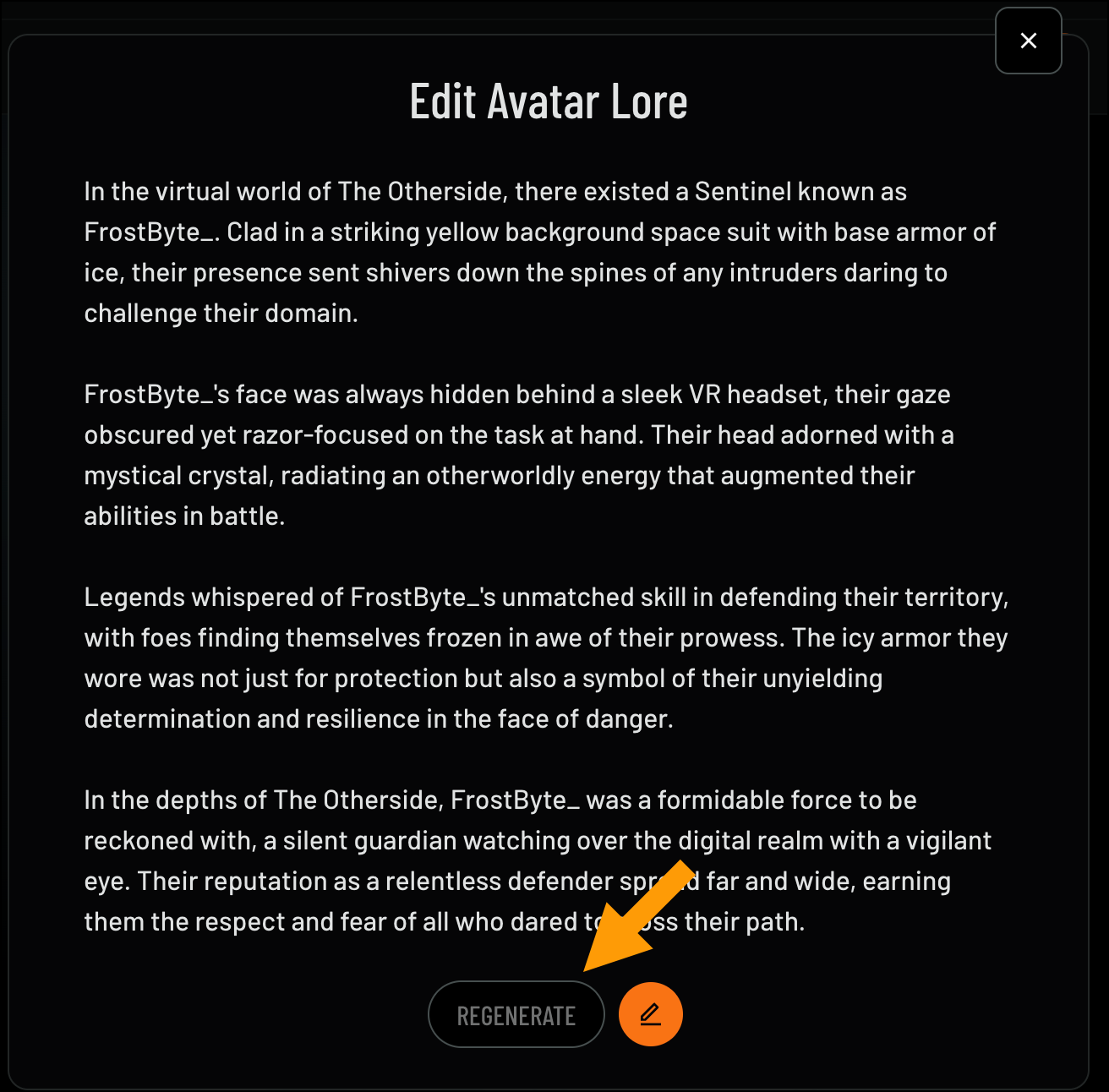
 2. If you'd like to generate a story, click **Regenerate**
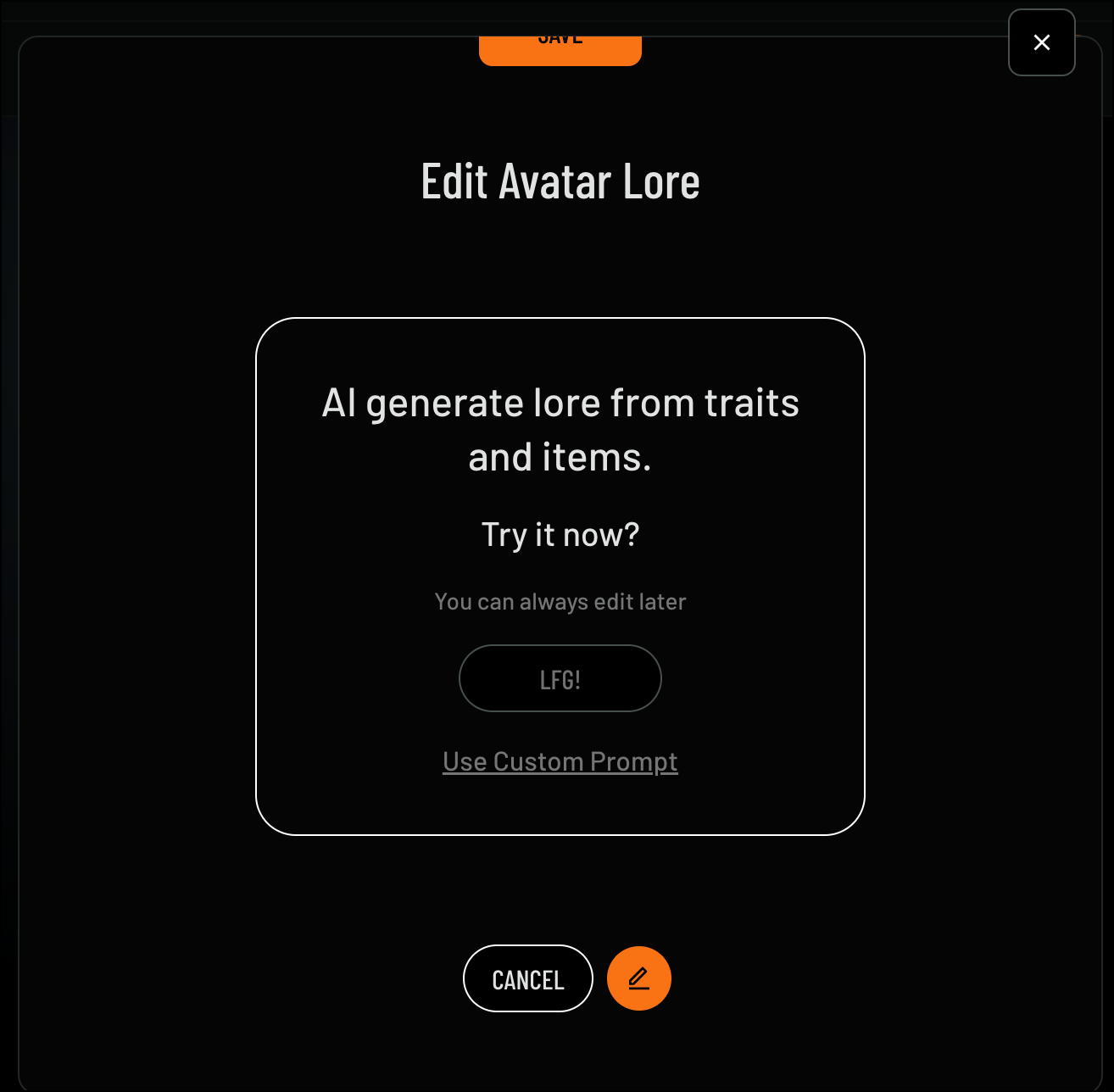
 3. Click **LFG!** to generate a story, or choose **Use Custom Prompt** to provide a specific idea for the AI to work from
 4. Click **Done** to finalize your Avatar's Lore
In this section, you can showcase the NFT items you’ve collected and display them on your profile. This allows you to feature your favorite digital assets and manage their visibility.
To add NFT items to your profile, follow these steps:
1. Navigate to the **Inventory** section
2. Click **Edit**
4. Click **Done** to finalize your Avatar's Lore
In this section, you can showcase the NFT items you’ve collected and display them on your profile. This allows you to feature your favorite digital assets and manage their visibility.
To add NFT items to your profile, follow these steps:
1. Navigate to the **Inventory** section
2. Click **Edit**
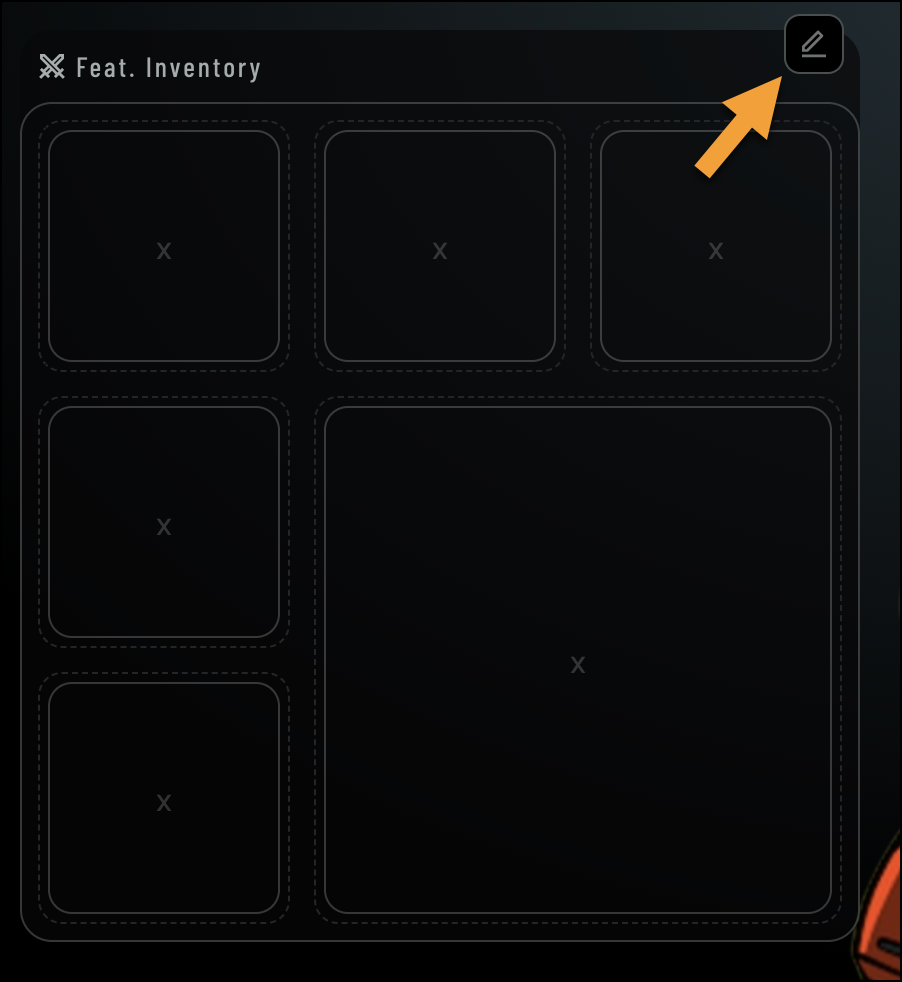 3. Select the item you'd like to add
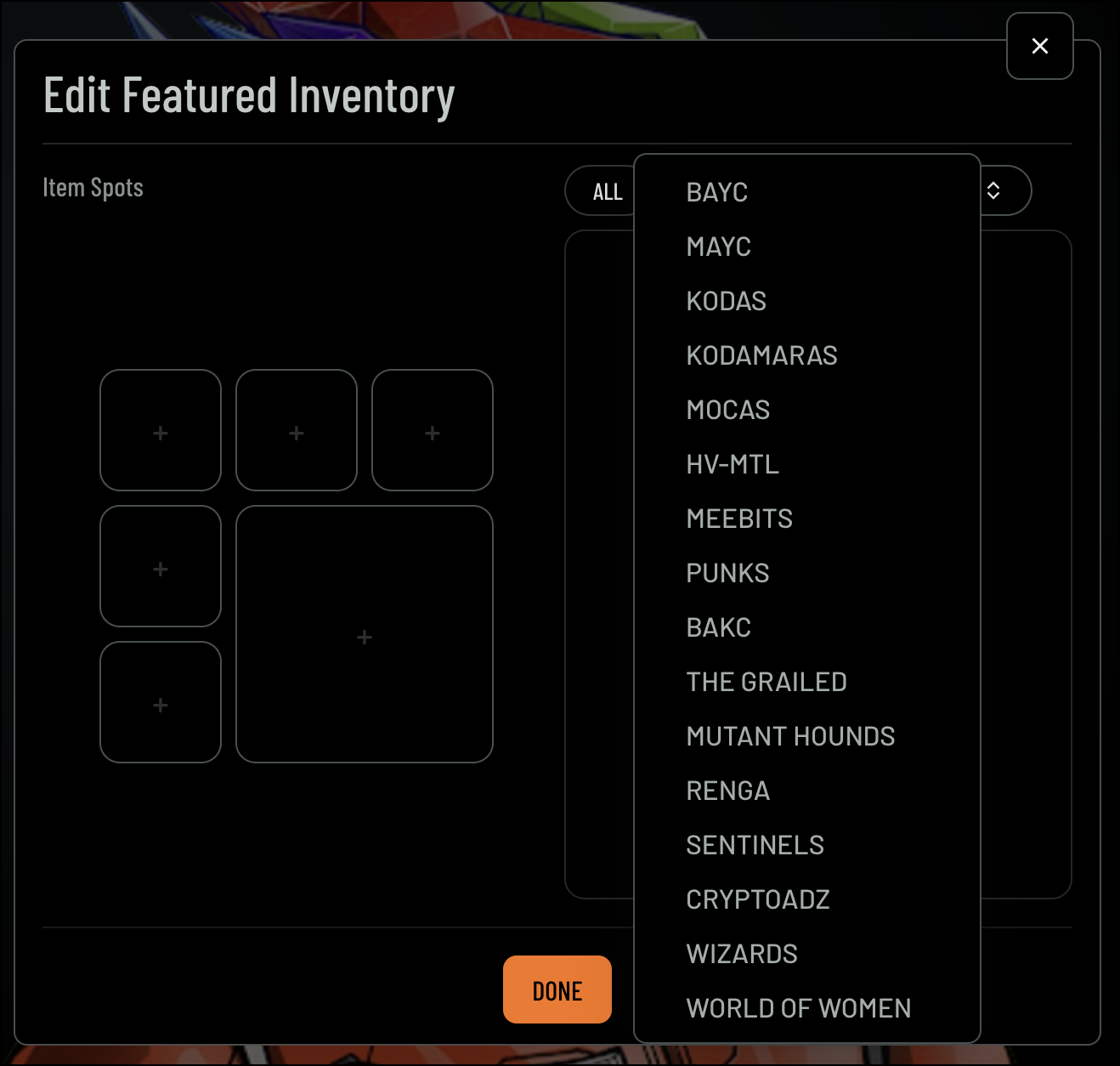
4. Filter your selection by **Avatar Collections** and/or **Items** if needed
* **Avatar Collection:**
3. Select the item you'd like to add
4. Filter your selection by **Avatar Collections** and/or **Items** if needed
* **Avatar Collection:**
 * **Items:**
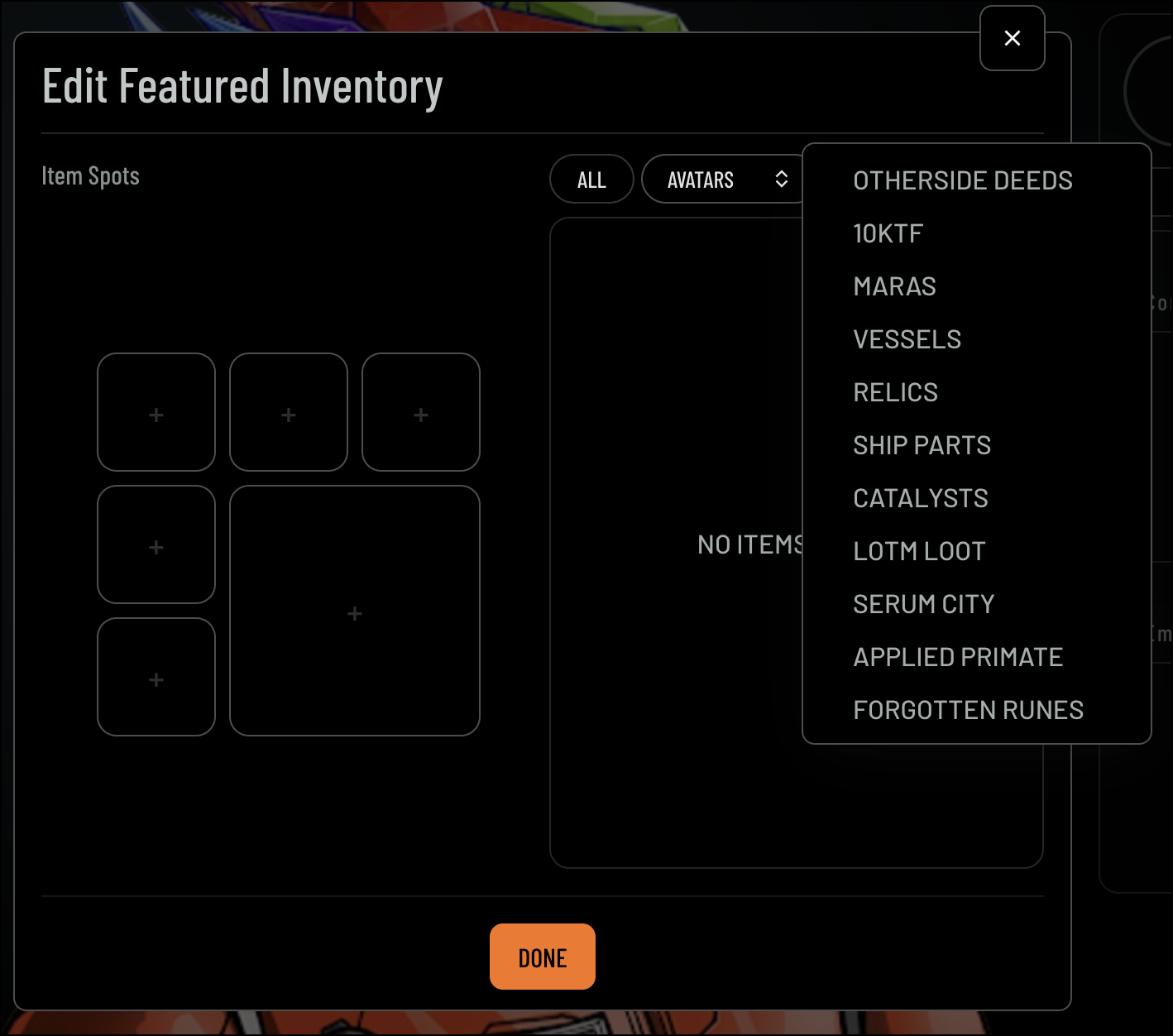 5. Click **Done** to finalize your changes
The Avatar Profile Navigation menu provides quick access to explore, customize, and share key areas of your avatar’s presence on OpenPage:
**Home Page**: View your account information, communities you’re part of, badges earned, and options to edit your account settings.
**Badge Page**: Discover badges, explore available achievements, and manage which badges to display on your profile.
**Communities Page**: Explore and join communities, connecting with other members who share similar interests.
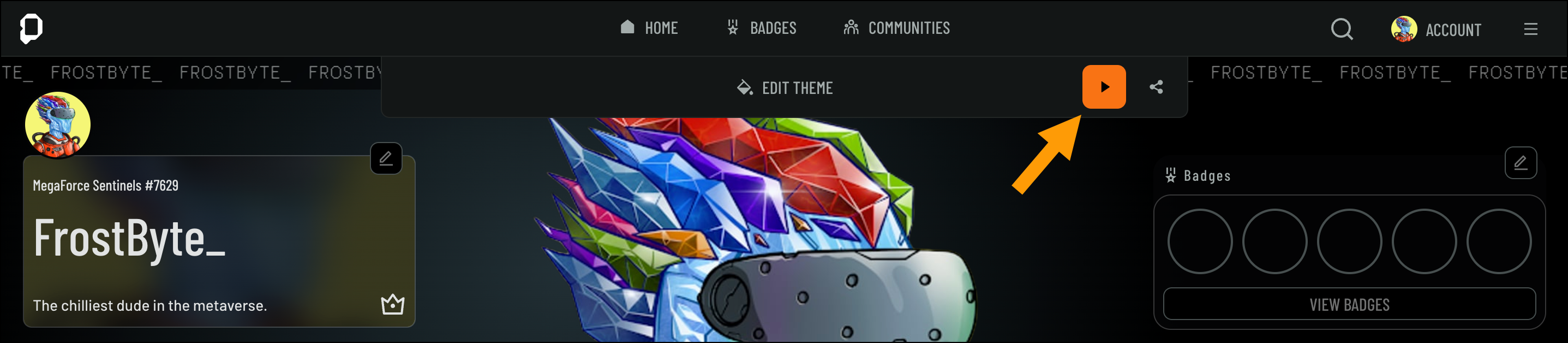
**Edit Theme**: Customize the appearance of your avatar profile by selecting and editing themes that reflect your style.
**Share Profile**: Easily share your avatar profile with others to showcase your achievements, badges, and community connections.
The **Badge** section allows you to showcase the badges you've earned across different experiences, highlighting your achievements on your profile. You can select which badges to display, giving visitors a visual summary of your accomplishments.
To display badges on your profile, follow these steps:
1. Navigate to the **Badge** section
2. Click **Edit**
5. Click **Done** to finalize your changes
The Avatar Profile Navigation menu provides quick access to explore, customize, and share key areas of your avatar’s presence on OpenPage:
**Home Page**: View your account information, communities you’re part of, badges earned, and options to edit your account settings.
**Badge Page**: Discover badges, explore available achievements, and manage which badges to display on your profile.
**Communities Page**: Explore and join communities, connecting with other members who share similar interests.
**Edit Theme**: Customize the appearance of your avatar profile by selecting and editing themes that reflect your style.
**Share Profile**: Easily share your avatar profile with others to showcase your achievements, badges, and community connections.
The **Badge** section allows you to showcase the badges you've earned across different experiences, highlighting your achievements on your profile. You can select which badges to display, giving visitors a visual summary of your accomplishments.
To display badges on your profile, follow these steps:
1. Navigate to the **Badge** section
2. Click **Edit**
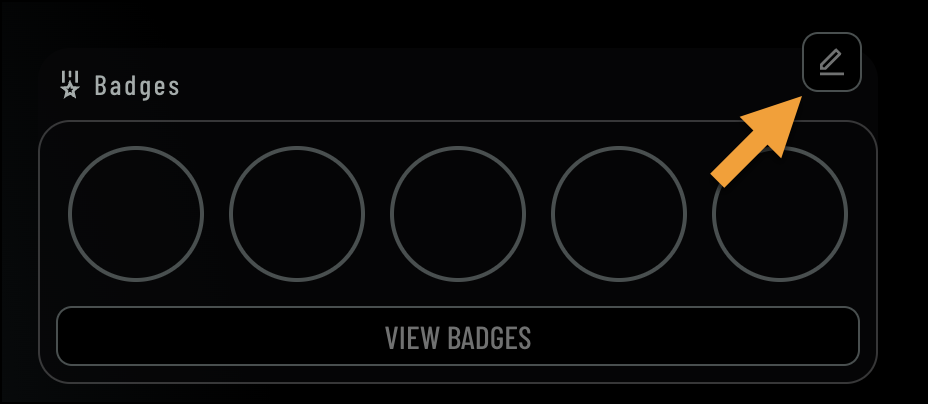 3. Select the badges you'd like to display
4. Click **Done**
You can also view collection badges by clicking View Badge.
3. Select the badges you'd like to display
4. Click **Done**
You can also view collection badges by clicking View Badge.
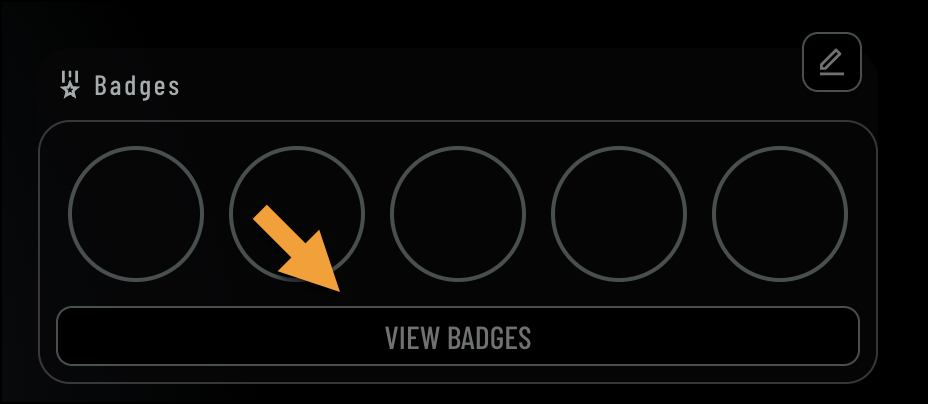 To learn more about badges, visit our [Earning Badges](https://docs.openpage.fun/earning-badges-rewards) page.
The Communities section allows you to add and manage the communities you're part of, showcasing them on your profile. You can select your primary community and edit which communities are displayed.
To add or edit communities on your profile, follow these steps:
1. Navigate to the **Communities** section
2. Click **Edit**
To learn more about badges, visit our [Earning Badges](https://docs.openpage.fun/earning-badges-rewards) page.
The Communities section allows you to add and manage the communities you're part of, showcasing them on your profile. You can select your primary community and edit which communities are displayed.
To add or edit communities on your profile, follow these steps:
1. Navigate to the **Communities** section
2. Click **Edit**
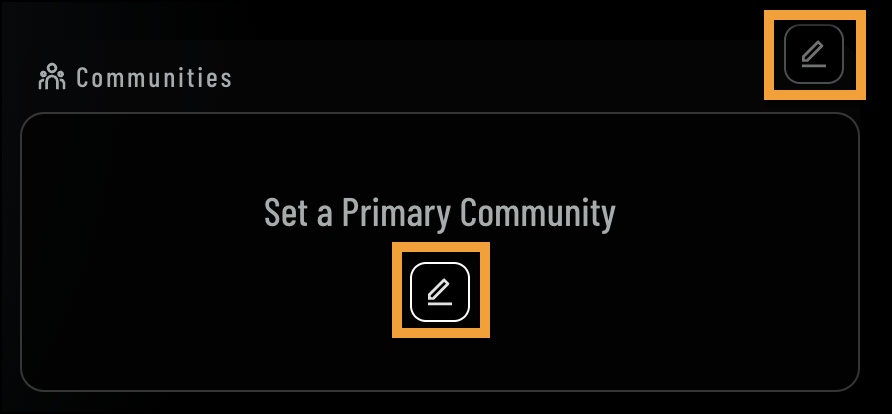 3. Search for your community and select it
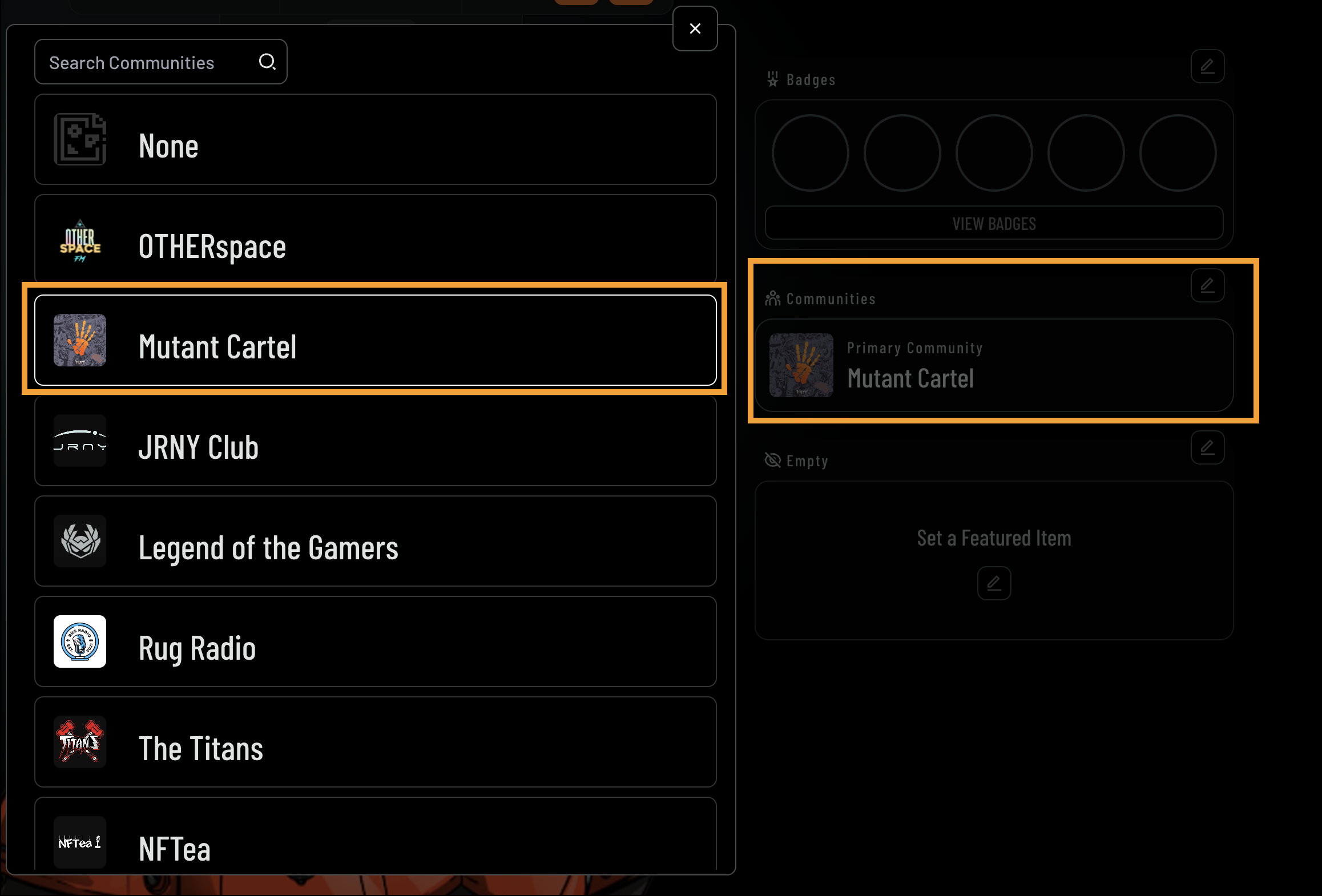 4. You'll notice your selected community will display under Communities
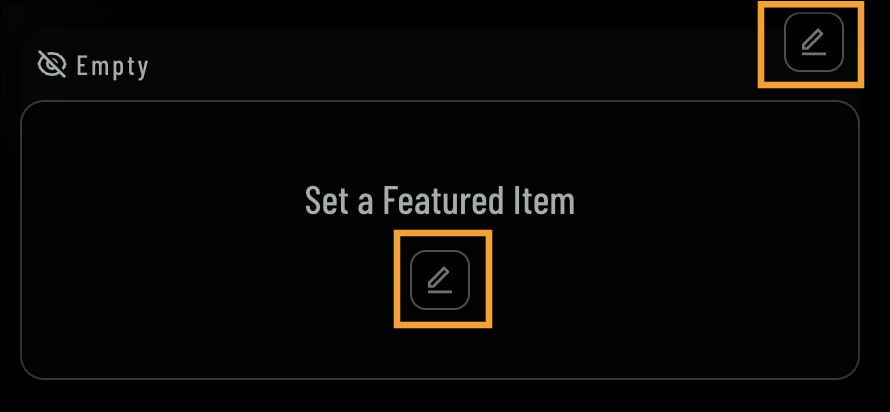
The Featured Item section allows you to highlight a specific NFT on your profile, making it stand out for visitors. You can choose any NFT from your collection to prominently feature.
To set a featured item on your profile, follow these steps:
1. Navigate to the **Featured Items** section
2. Click **Edit**
4. You'll notice your selected community will display under Communities
The Featured Item section allows you to highlight a specific NFT on your profile, making it stand out for visitors. You can choose any NFT from your collection to prominently feature.
To set a featured item on your profile, follow these steps:
1. Navigate to the **Featured Items** section
2. Click **Edit**
 3. Select the item you'd like to feature on your avatar page
4. You can filter your selection by item type and avatar collection
* **Type:**
3. Select the item you'd like to feature on your avatar page
4. You can filter your selection by item type and avatar collection
* **Type:**
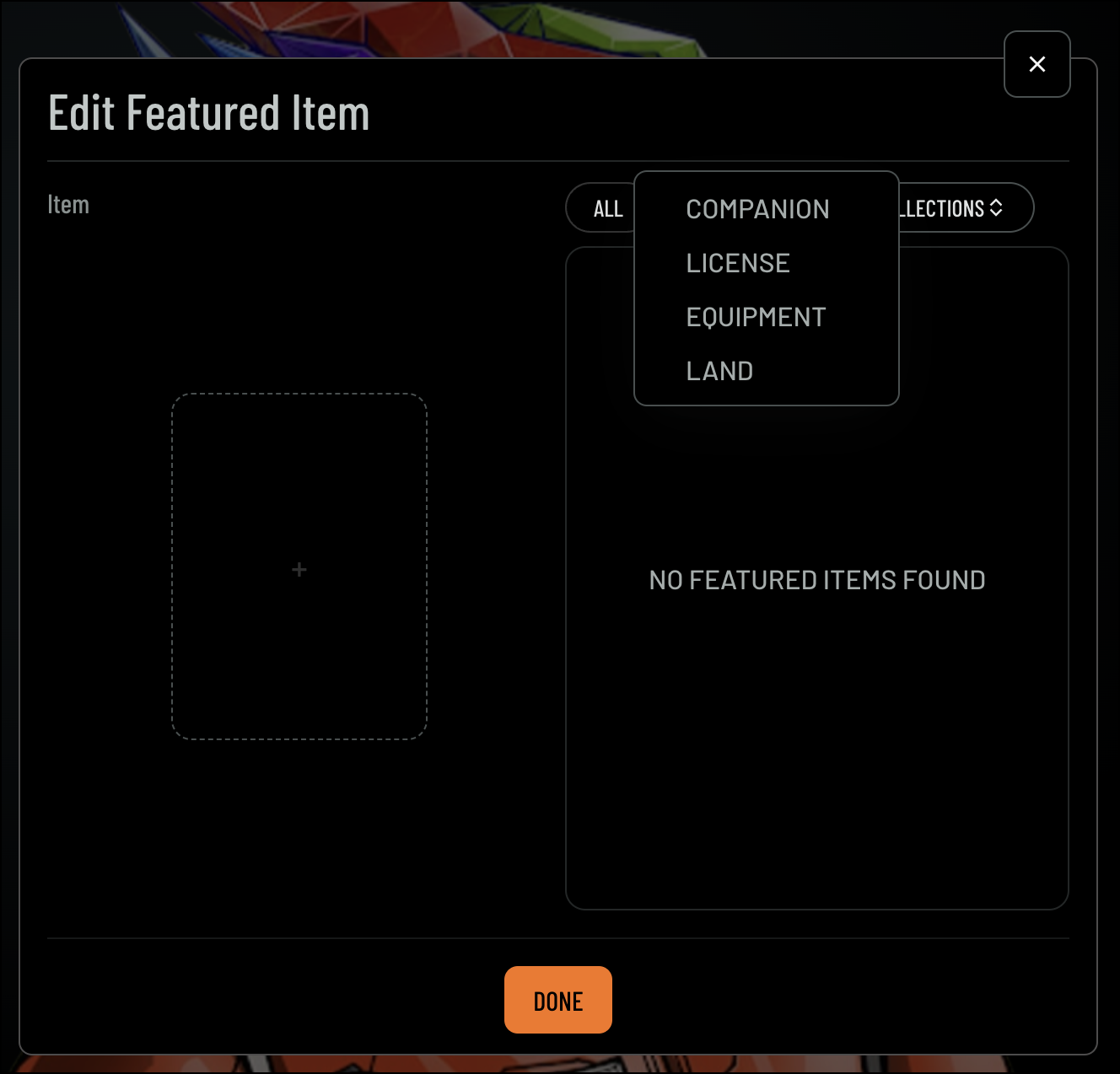 * **Avatar Collection:**
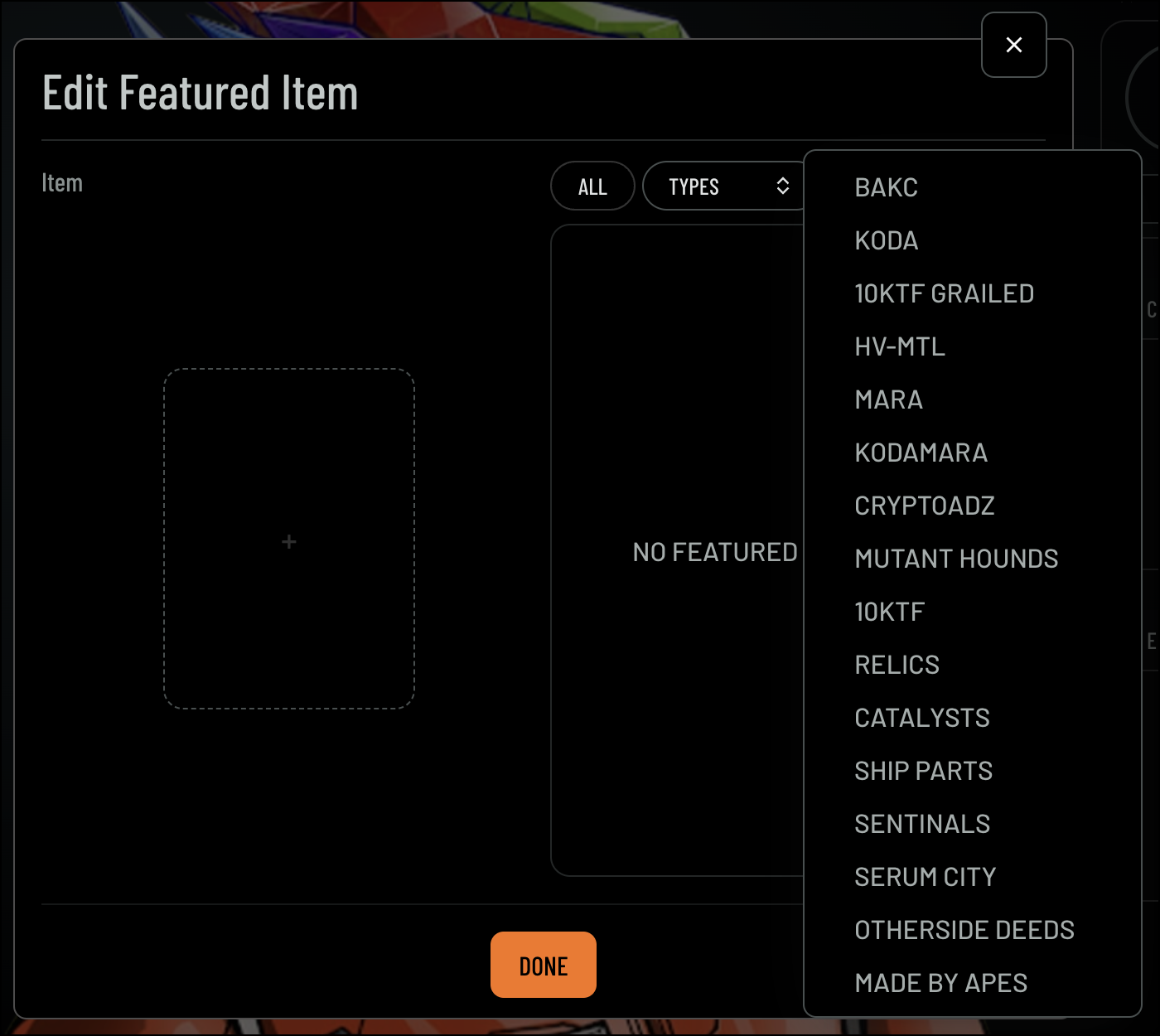 5. Click **Done** to apply your changes
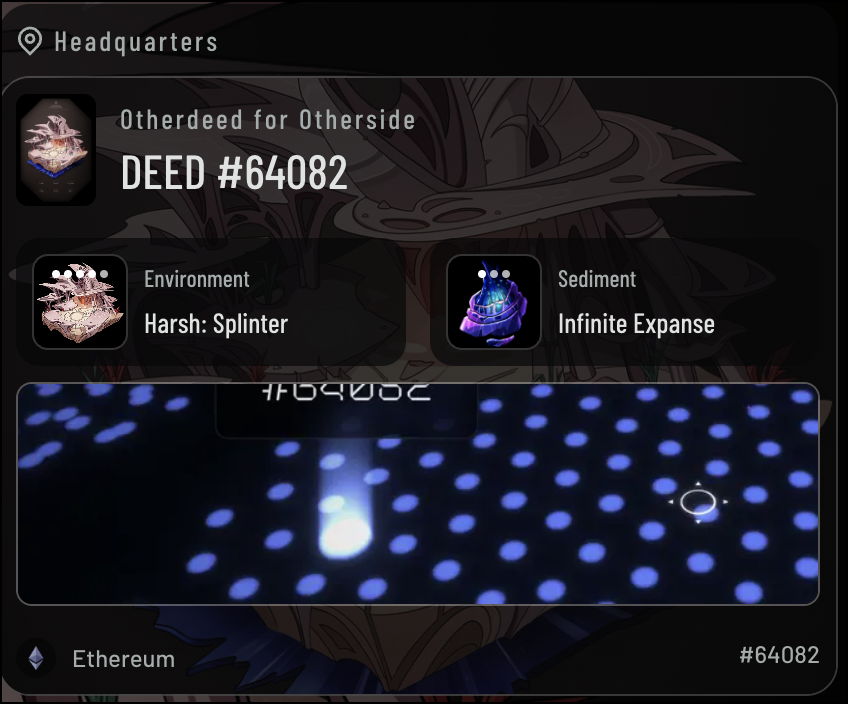
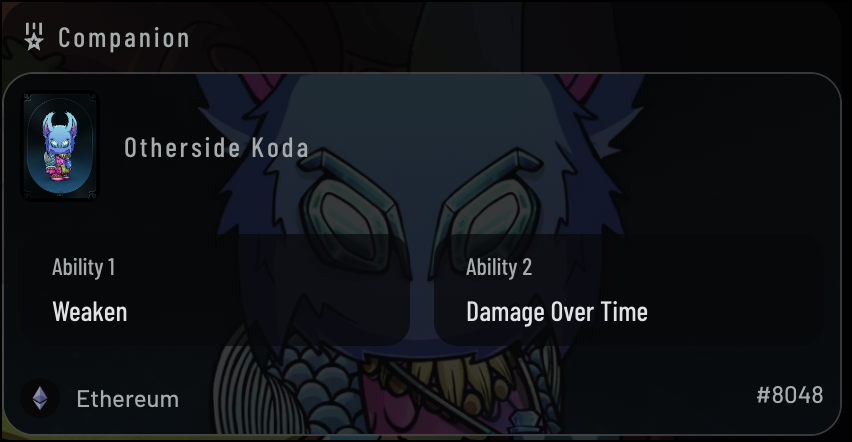
The **Featured Items** section updates based on the item type you select. Below are some examples:
Land Type:
5. Click **Done** to apply your changes
The **Featured Items** section updates based on the item type you select. Below are some examples:
Land Type:
 Companion Type:
 Once you've finished customizing your Avatar Profile. Click **Save** to finalize your Avatar Profile.
 ### Sharing your Avatar Profile Page
To share your Avatar Profile:
1. Navigate to **Avatar Profile Navigation**
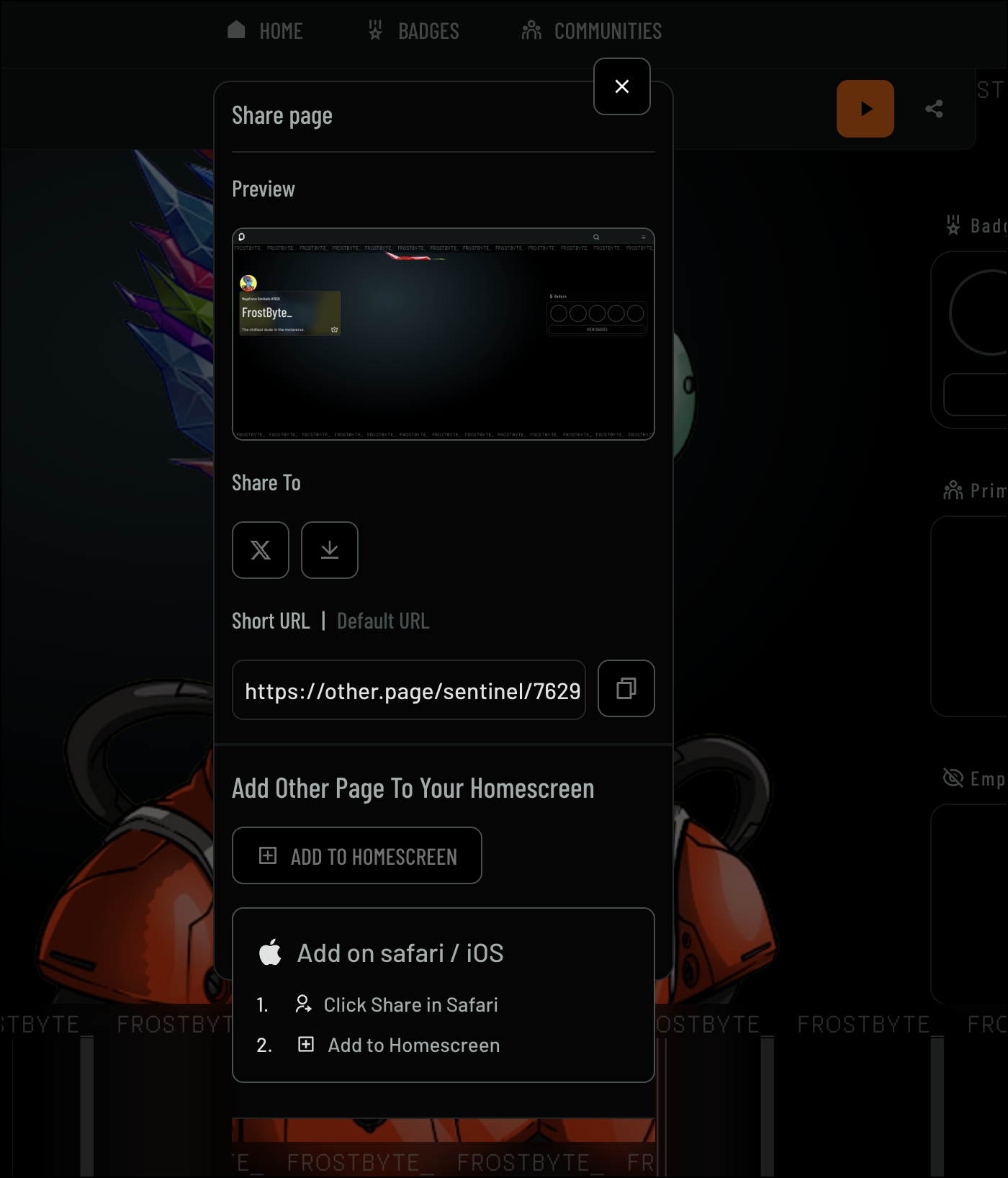
2. Click **Share**. The **Share Page** screen will display, allowing you to select your preferred sharing method.
### Sharing your Avatar Profile Page
To share your Avatar Profile:
1. Navigate to **Avatar Profile Navigation**
2. Click **Share**. The **Share Page** screen will display, allowing you to select your preferred sharing method.
 ## Avatar Profile Theme
Themes are NFTs you can equip to your Avatar Profile, transforming the look and feel of your page. By customizing your theme, you can showcase unique styles awarded to you or unlocked through community involvement, giving you a fresh way to display your allegiance and identity. Themes bring a new layer of NFT utility and open up a new stream of user-generated content, allowing communities to visually *flex* their connections and achievements.
## Avatar Profile Theme
Themes are NFTs you can equip to your Avatar Profile, transforming the look and feel of your page. By customizing your theme, you can showcase unique styles awarded to you or unlocked through community involvement, giving you a fresh way to display your allegiance and identity. Themes bring a new layer of NFT utility and open up a new stream of user-generated content, allowing communities to visually *flex* their connections and achievements.