> ## Documentation Index
> Fetch the complete documentation index at: https://docs.openpage.fun/llms.txt
> Use this file to discover all available pages before exploring further.
# Account Overview
> On the Account page, you can view your account information, manage linked wallets and social media accounts, and review login sessions. Add, edit, or remove wallets and accounts, and explore security features like delegation.
## Account Info
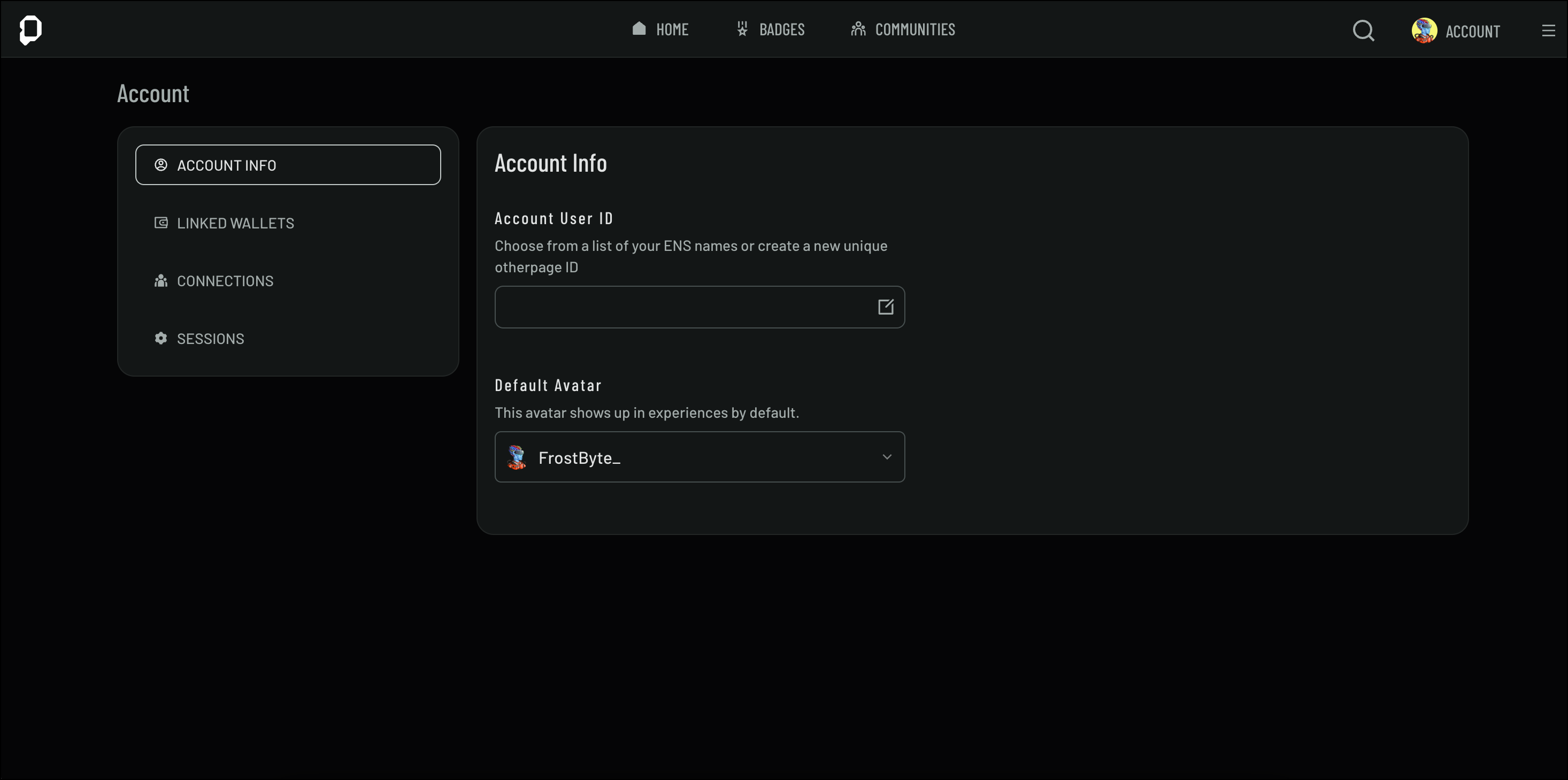
The Account page provides a centralized view of your profile and settings, allowing you to manage key aspects of your account. Here, you can view your account information, including your user ID and default avatar, manage linked wallets and social media connections, and review your current login sessions.
1. From the **Home** page, click **Account** from the top-left corner
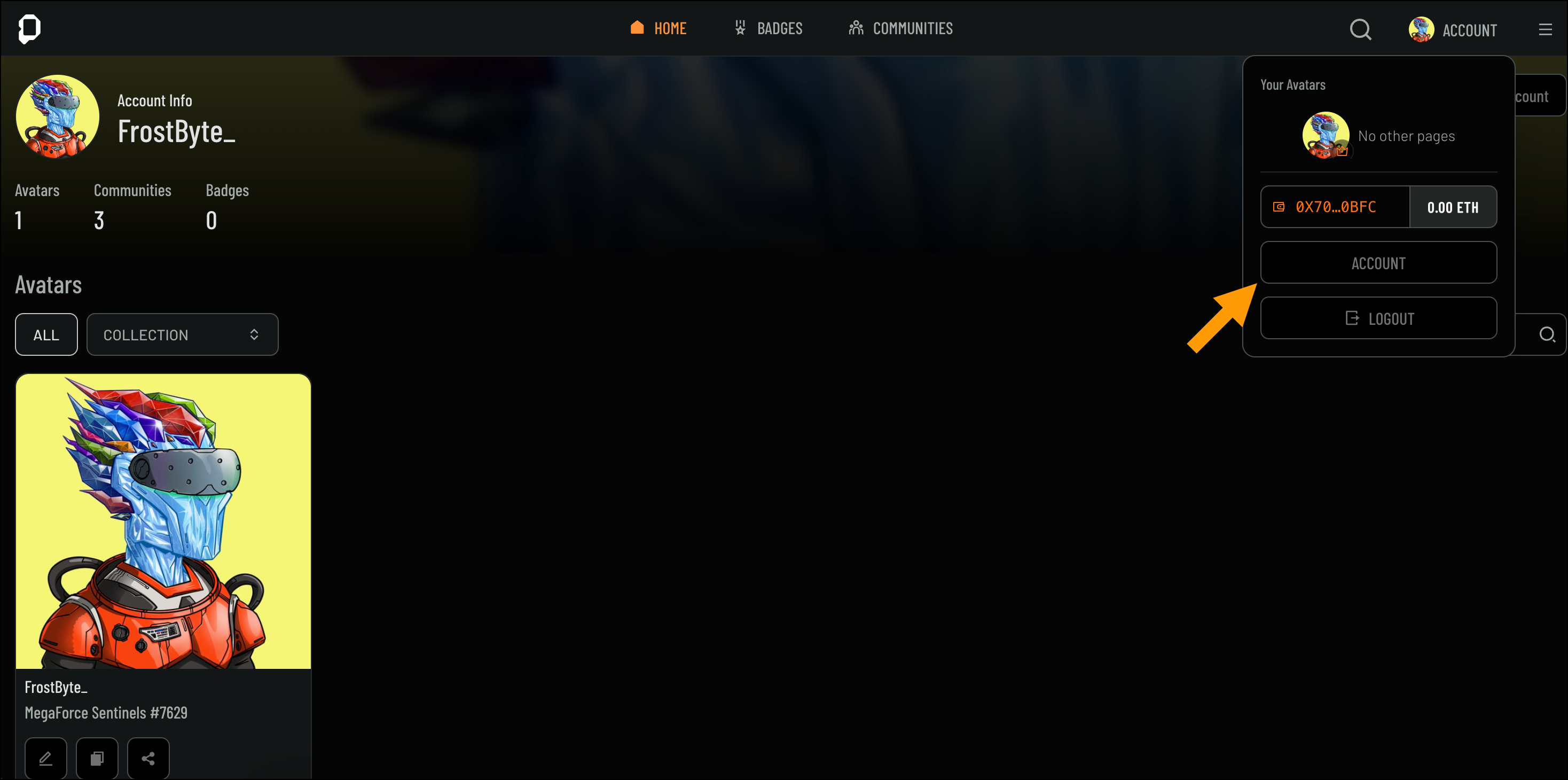 2. Select *Account* from the drop-down to open your **Account** page
 ## Managing Connected Accounts
Easily link your social media and third-party accounts to your profile. This section guides you through adding, editing, and disconnecting accounts to streamline your online presence and ensure your connected profiles are up to date.
To connect an account, follow these steps:
1. On the **Account** page, navigate to the **Connections** page using the left navigation
## Managing Connected Accounts
Easily link your social media and third-party accounts to your profile. This section guides you through adding, editing, and disconnecting accounts to streamline your online presence and ensure your connected profiles are up to date.
To connect an account, follow these steps:
1. On the **Account** page, navigate to the **Connections** page using the left navigation
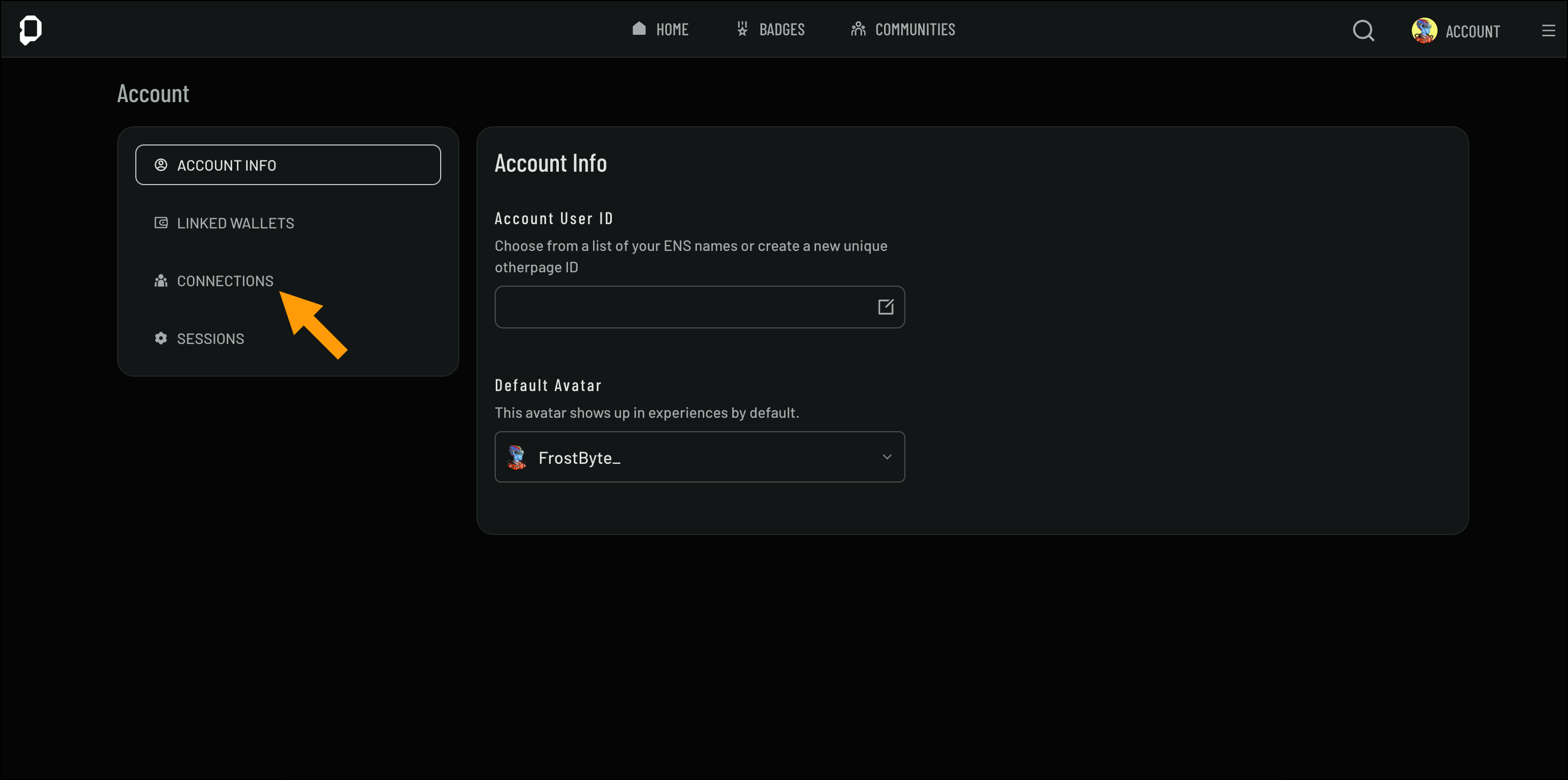 2. Click **Connect** next to the social media account you'd like to add and follow the prompts
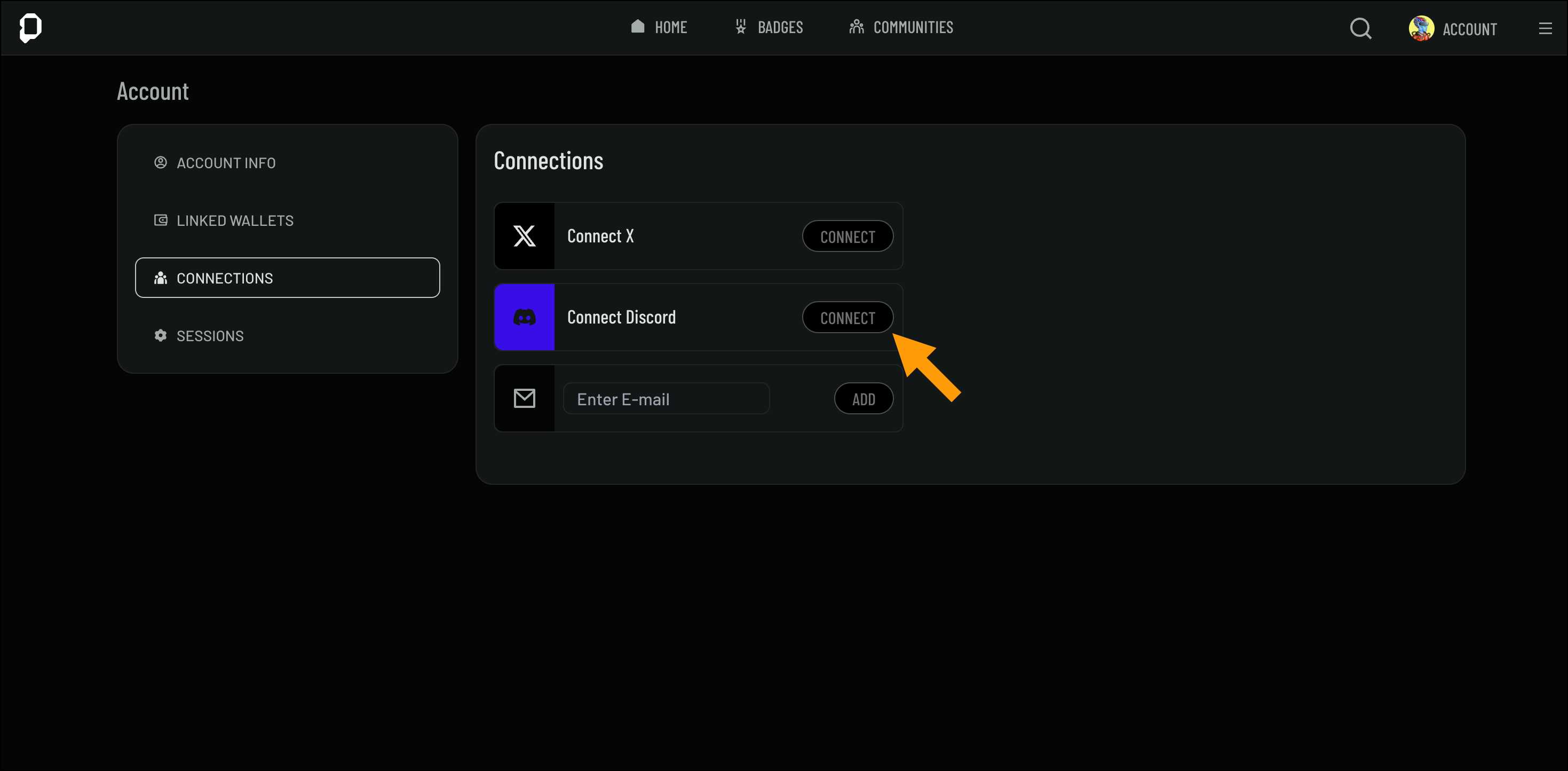 *(Optional)* Enter your email address and click **Add** to receive product updates.
To remove a connected account:
1. On the **Account** page, navigate to the **Connections** page
2. Click the **X** next to the connected account you want to disconnect
*(Optional)* Enter your email address and click **Add** to receive product updates.
To remove a connected account:
1. On the **Account** page, navigate to the **Connections** page
2. Click the **X** next to the connected account you want to disconnect
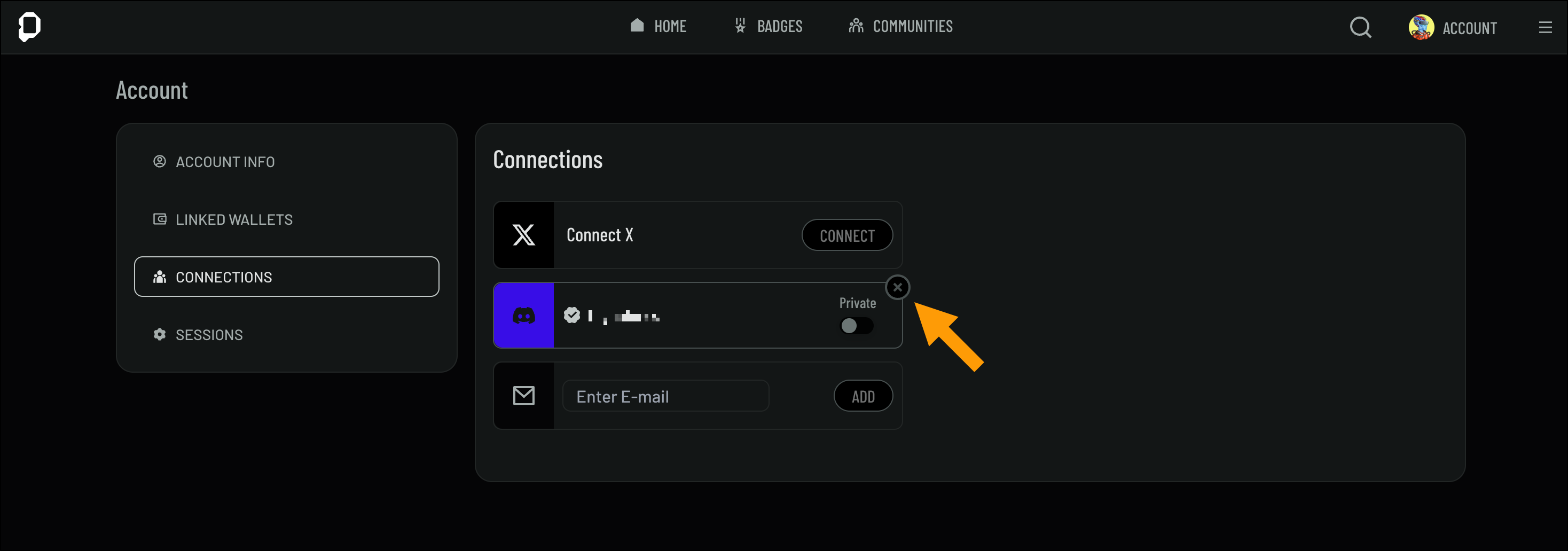 Set the visibility of your connected accounts by using the **Private/Public** toggle.
### Email
Email connections are managed using Magic Link. Magic Link enables you to login to your account using an email Magic link instead of a wallet signature. If you login or connect a magic link email, a wallet address will get automatically created and linked to your account.
Set the visibility of your connected accounts by using the **Private/Public** toggle.
### Email
Email connections are managed using Magic Link. Magic Link enables you to login to your account using an email Magic link instead of a wallet signature. If you login or connect a magic link email, a wallet address will get automatically created and linked to your account.
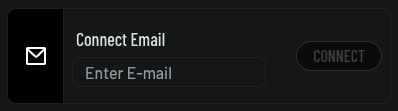
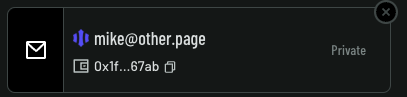 If you logged in for the first time using a Magic Link, the Magic Link address will be set as your primary wallet address. If you need to update your primary address in order to configure a new wallet for delegated wallet purposes contact support using the in-app chat (located at the bottom right).
### Yuga ID
Yuga ID enables you to login to your account using your Yuga ID instead of a wallet signature. If you login or connect a Yuga ID, two wallet addresses will get automatically linked to your account.
1. Your default Privvy Wallet address tied to your Yuga ID.
2. A smart account wallet address used to sponsor gas for your Yuga ID.
If you logged in for the first time using a Magic Link, the Magic Link address will be set as your primary wallet address. If you need to update your primary address in order to configure a new wallet for delegated wallet purposes contact support using the in-app chat (located at the bottom right).
### Yuga ID
Yuga ID enables you to login to your account using your Yuga ID instead of a wallet signature. If you login or connect a Yuga ID, two wallet addresses will get automatically linked to your account.
1. Your default Privvy Wallet address tied to your Yuga ID.
2. A smart account wallet address used to sponsor gas for your Yuga ID.
 If you logged in for the first time using a Yuga ID, the default Privy Yuga ID address will be set as your primary wallet address. If you need to update your primary address in order to configure a new wallet for delegated wallet purposes contact support using the in-app chat (located at the bottom right).
## Managing Linked Wallets
Manage your linked wallets by adding, editing, or removing them from your account. You'll also learn about wallet compatibility and security features like delegation, ensuring a secure connection between your profile and your digital assets.
### Wallet Compatibility
Ensure that your wallet is compatible with the system before connecting it. We support most EVM compatible wallets. Including but not limited to:
* MetaMask
* Coinbase Wallet
* Rabby Wallet
* Rainbow Wallet
* Phantom Wallet
* etc.
### Connecting a Wallet
To connect a wallet, follow these steps:
1. On the **Account** page, navigate to **Linked Wallets** page
2. Click **Connect** (or disconnect if already connected to connect a new wallet).
If you logged in for the first time using a Yuga ID, the default Privy Yuga ID address will be set as your primary wallet address. If you need to update your primary address in order to configure a new wallet for delegated wallet purposes contact support using the in-app chat (located at the bottom right).
## Managing Linked Wallets
Manage your linked wallets by adding, editing, or removing them from your account. You'll also learn about wallet compatibility and security features like delegation, ensuring a secure connection between your profile and your digital assets.
### Wallet Compatibility
Ensure that your wallet is compatible with the system before connecting it. We support most EVM compatible wallets. Including but not limited to:
* MetaMask
* Coinbase Wallet
* Rabby Wallet
* Rainbow Wallet
* Phantom Wallet
* etc.
### Connecting a Wallet
To connect a wallet, follow these steps:
1. On the **Account** page, navigate to **Linked Wallets** page
2. Click **Connect** (or disconnect if already connected to connect a new wallet).
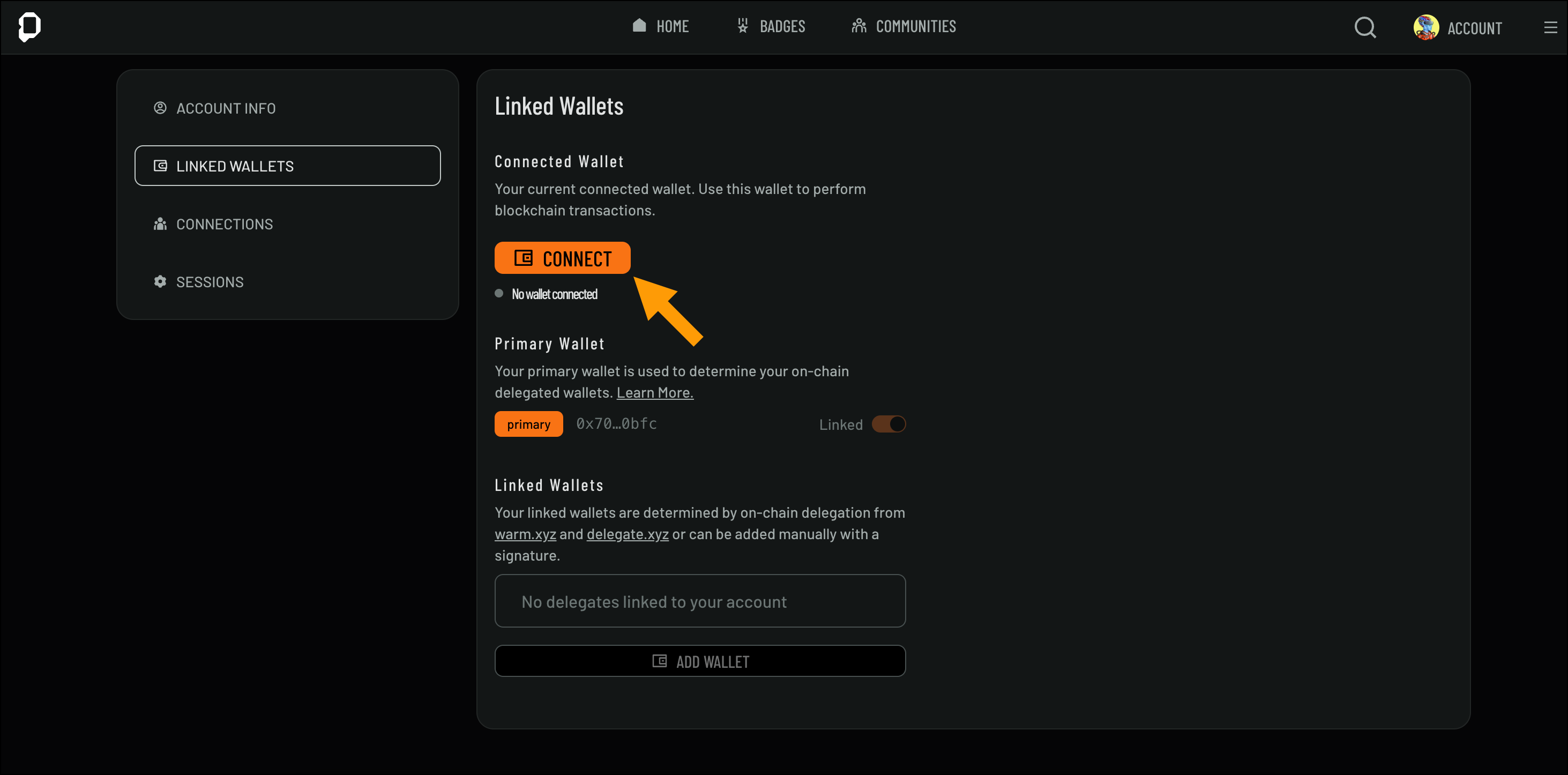 3. Follow the prompts to complete the process
### Wallet Delegation
Wallet delegation allows you to grant control to another account or service for specific tasks without transferring full ownership of your wallet. Using trusted third-party services like delegate.xyz or warm.xyz, you can securely delegate specific actions, ensuring that your sensitive wallet credentials remain safe. It’s important to understand the scope of permissions granted during delegation and always ensure you're delegating to a trusted service or individual to maintain control over your assets.
3. Follow the prompts to complete the process
### Wallet Delegation
Wallet delegation allows you to grant control to another account or service for specific tasks without transferring full ownership of your wallet. Using trusted third-party services like delegate.xyz or warm.xyz, you can securely delegate specific actions, ensuring that your sensitive wallet credentials remain safe. It’s important to understand the scope of permissions granted during delegation and always ensure you're delegating to a trusted service or individual to maintain control over your assets.
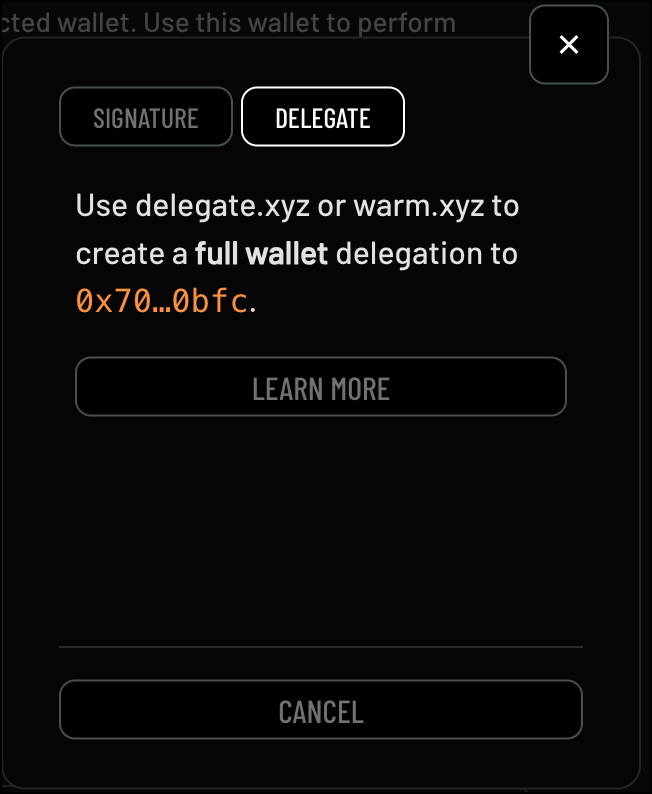 For security reasons, OpenPage only supports FULL WALLET delegation, not single NFT delegation. In addition, delegations will only be pulled from the primary wallet address. If you need to change your primary wallet address to adjust which delegated wallets are added to your account please contact us using the chat button (located at the bottom right).
Looking to set up a wallet delegation? Explore the detailed documentation for [delegate.xyz](https://docs.delegate.xyz/) and [warm.xyz](https://warm.xyz/documentation) to learn how to securely delegate control of your wallet.
To manually add wallet delegation, follow these steps:
1. On the **Linked Wallets** page
2. Click **Add Wallet**
For security reasons, OpenPage only supports FULL WALLET delegation, not single NFT delegation. In addition, delegations will only be pulled from the primary wallet address. If you need to change your primary wallet address to adjust which delegated wallets are added to your account please contact us using the chat button (located at the bottom right).
Looking to set up a wallet delegation? Explore the detailed documentation for [delegate.xyz](https://docs.delegate.xyz/) and [warm.xyz](https://warm.xyz/documentation) to learn how to securely delegate control of your wallet.
To manually add wallet delegation, follow these steps:
1. On the **Linked Wallets** page
2. Click **Add Wallet**
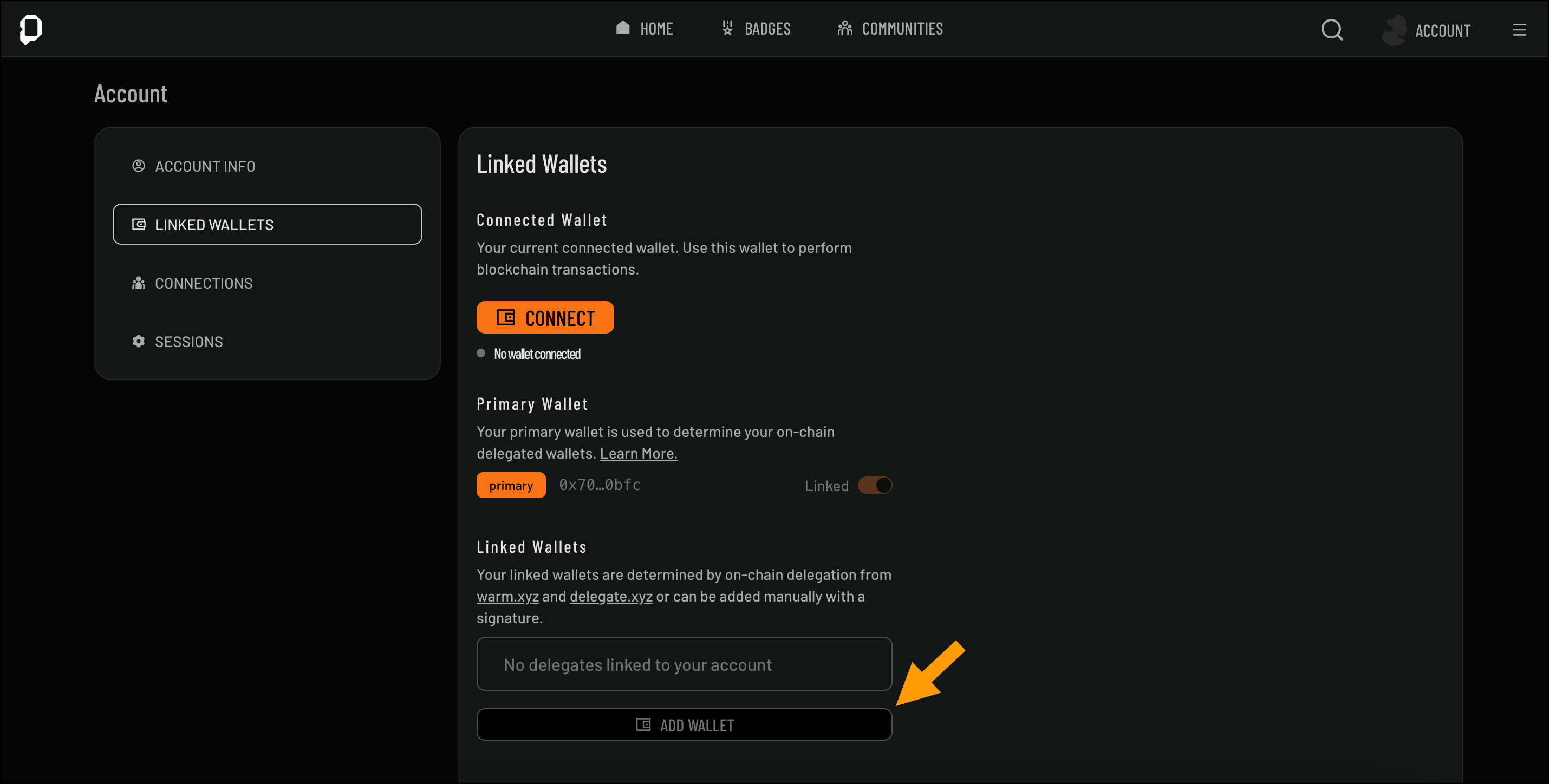 3. Choose one of the following options:
Use your wallet signature to verify and connect
Delegate wallet control to another account
4. Follow the prompts to complete the process
### Disconnecting a Wallet
To disconnect a wallet, follow these steps:
1. On the **Linked Wallets** page
2. Click **Disconnect**
3. Choose one of the following options:
Use your wallet signature to verify and connect
Delegate wallet control to another account
4. Follow the prompts to complete the process
### Disconnecting a Wallet
To disconnect a wallet, follow these steps:
1. On the **Linked Wallets** page
2. Click **Disconnect**
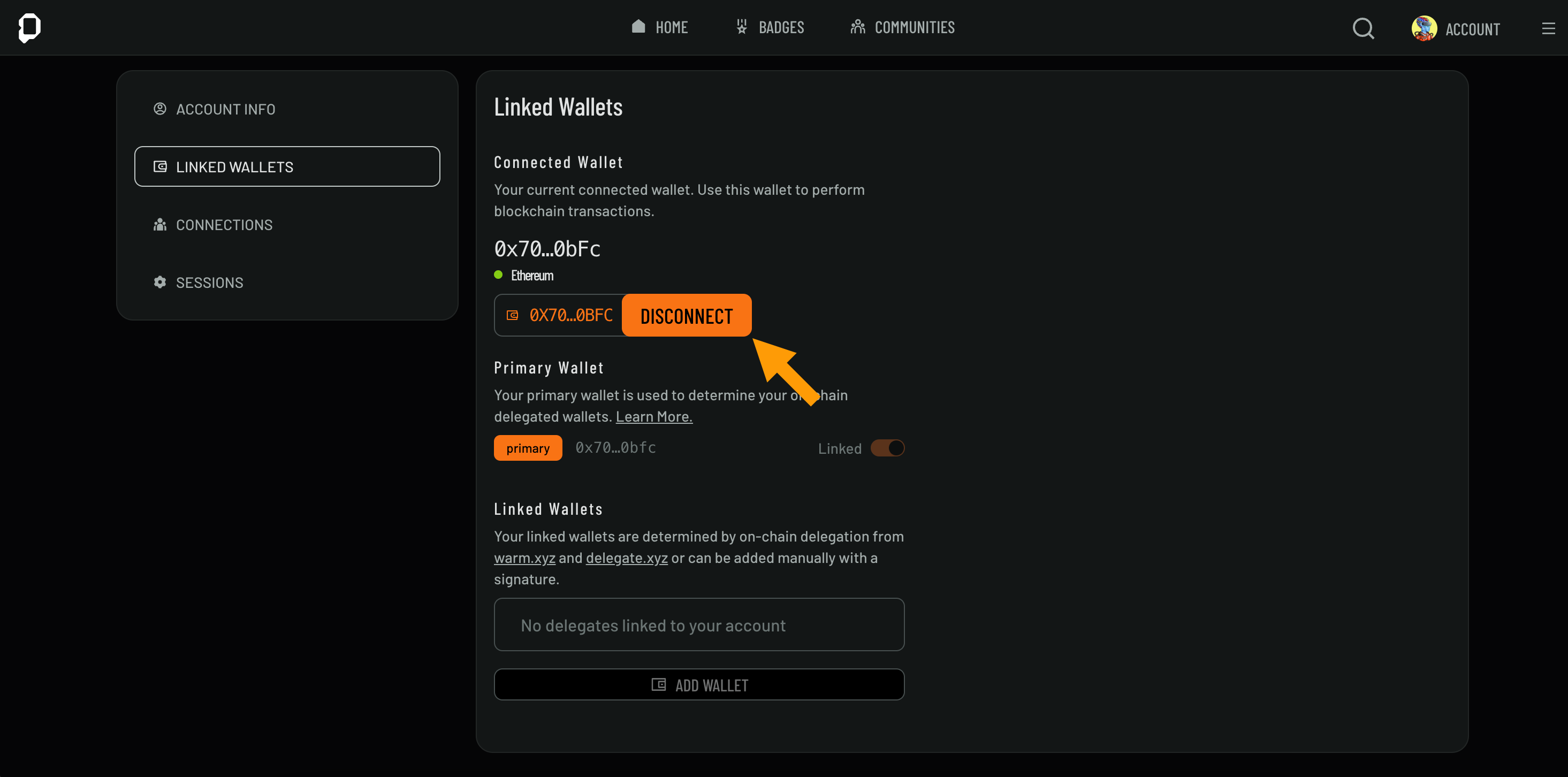 Once you selected **Disconnect Wallet**, and would like to add a new wallet click **Connect Wallet**.
### Essential Wallet Security Practices:
To protect your digital assets, it’s important to follow best practices for wallet security. Below are key measures to keep your wallet and private keys safe.
#### Private Key/Seed Phrase Protection:
Never share your private key or seed phrase with anyone. These are critical for accessing and controlling your wallet. If someone else has access to them, they can take full control of your assets.
Always store your seed phrase offline in a secure location. Avoid storing it on devices connected to the internet (e.g., in cloud storage or digital notes).
#### Two-Factor Authentication (2FA):
Enable 2FA wherever possible to add an extra layer of security to your wallet. This ensures that even if your password is compromised, an attacker still cannot access your wallet without the second factor.
#### Beware of Phishing Attacks:
Always verify URLs and websites when connecting your wallet. Phishing sites may look legitimate but are designed to steal your private keys and funds.
Never click on suspicious links in emails, social media messages, or pop-ups asking you to connect your wallet or provide private information.
#### Use Hardware Wallets for Added Security:
For maximum security, consider using a hardware wallet (e.g., Ledger or Trezor). Hardware wallets store your private keys offline, making them less susceptible to hacks and malware.
#### Regularly Update Wallet Software:
Keep your wallet software up-to-date to ensure that you have the latest security patches and features. Outdated wallets may be vulnerable to known exploits.
#### Transaction Monitoring
Always double-check transaction details, including addresses and amounts, before confirming any transfer. Malicious software or extensions can alter transaction details without your knowledge.
#### Multi-Signature Wallets:
For high-value wallets or group-owned assets, consider using multi-signature wallets. This requires multiple approvals before a transaction can be executed, reducing the risk of unauthorized transactions.
Once you selected **Disconnect Wallet**, and would like to add a new wallet click **Connect Wallet**.
### Essential Wallet Security Practices:
To protect your digital assets, it’s important to follow best practices for wallet security. Below are key measures to keep your wallet and private keys safe.
#### Private Key/Seed Phrase Protection:
Never share your private key or seed phrase with anyone. These are critical for accessing and controlling your wallet. If someone else has access to them, they can take full control of your assets.
Always store your seed phrase offline in a secure location. Avoid storing it on devices connected to the internet (e.g., in cloud storage or digital notes).
#### Two-Factor Authentication (2FA):
Enable 2FA wherever possible to add an extra layer of security to your wallet. This ensures that even if your password is compromised, an attacker still cannot access your wallet without the second factor.
#### Beware of Phishing Attacks:
Always verify URLs and websites when connecting your wallet. Phishing sites may look legitimate but are designed to steal your private keys and funds.
Never click on suspicious links in emails, social media messages, or pop-ups asking you to connect your wallet or provide private information.
#### Use Hardware Wallets for Added Security:
For maximum security, consider using a hardware wallet (e.g., Ledger or Trezor). Hardware wallets store your private keys offline, making them less susceptible to hacks and malware.
#### Regularly Update Wallet Software:
Keep your wallet software up-to-date to ensure that you have the latest security patches and features. Outdated wallets may be vulnerable to known exploits.
#### Transaction Monitoring
Always double-check transaction details, including addresses and amounts, before confirming any transfer. Malicious software or extensions can alter transaction details without your knowledge.
#### Multi-Signature Wallets:
For high-value wallets or group-owned assets, consider using multi-signature wallets. This requires multiple approvals before a transaction can be executed, reducing the risk of unauthorized transactions.